
# How to Batch Edit Multiple Photos Quickly and Cheaply
Editing one photograph can be simple, but what happens when you have 100, 500, or even 1,000 images waiting to be edited? Adjusting brightness, correcting colors, cropping, and exporting every photograph individually can take a considerable amount of time.
This is a common challenge for photographers, online sellers, content creators, and businesses that regularly work with large image collections.
Fortunately, you do not have to repeat every editing step manually.
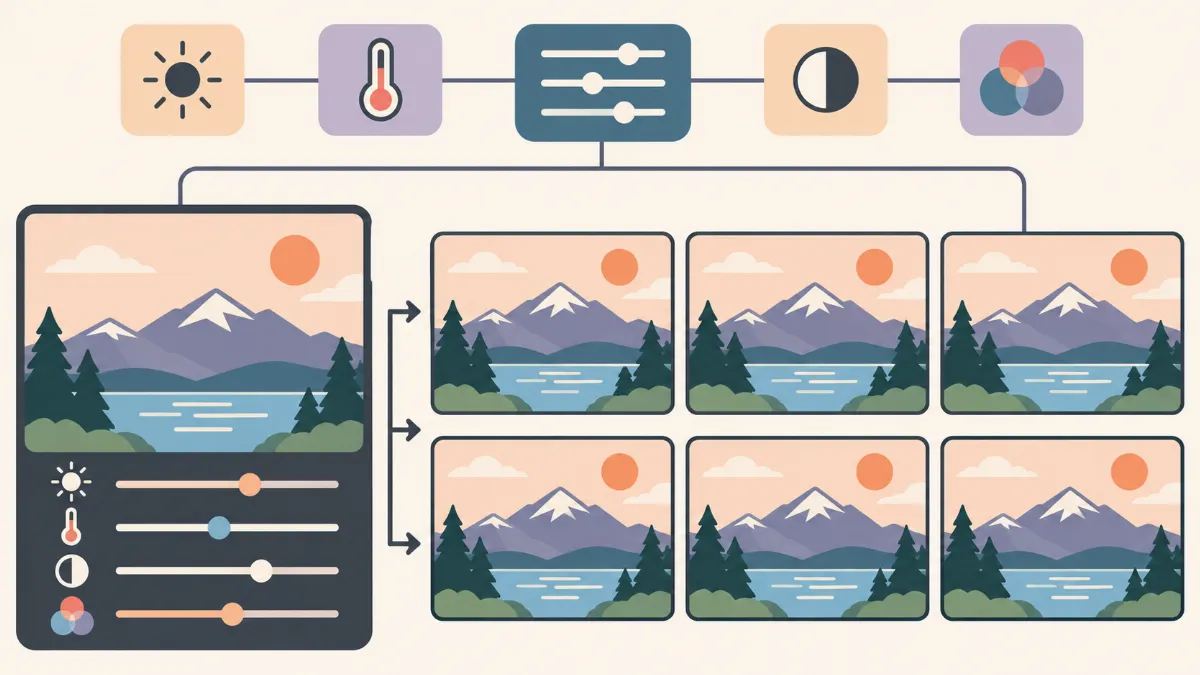
**Batch photo editing** allows you to apply the same adjustments or processing instructions to multiple photographs, saving time and reducing repetitive work.
For example, if you photograph 100 products under the same lighting conditions, you may be able to correct the white balance and apply similar exposure settings across the collection instead of adjusting every image from the beginning.
You can also use batch processing to resize photographs, convert file formats, apply presets, and prepare images for online stores or social media.
The best part is that batch editing does not always require expensive software. Several applications offer free or affordable tools for handling multiple images.
However, faster editing does not mean applying identical corrections to every photograph without checking the results. Images with different lighting, subjects, and backgrounds may still need individual attention.
In this guide, you will learn **how to batch edit multiple photos quickly and cheaply**, which tools to use, how to create an efficient editing workflow, and how to maintain consistent image quality without spending unnecessary time or money.
What Is Batch Photo Editing?
Batch photo editing is the process of applying editing settings or automated operations to multiple images within one workflow.
Instead of opening each photograph separately and repeating the same adjustments, you can process several images together.
For example, imagine you have 200 product photographs that need to be resized to the same dimensions.
Without batch processing, you might open each file, adjust its size, save it, and repeat the process 200 times.
With a suitable batch tool, you can define the required dimensions and process the files together.
Batch editing may include:
- Copying exposure adjustments
- Applying consistent white balance
- Using photo editing presets
- Adjusting color settings
- Resizing multiple photographs
- Converting image formats
- Renaming files
- Applying suitable sharpening
- Adding approved watermarks
- Exporting images in bulk
Some applications also support automated workflows for more complicated tasks.
However, not every editing technique is suitable for batch processing.
Detailed skin retouching, jewelry reflection cleanup, and complicated background corrections often require individual attention.
The purpose of batch editing is to automate repetitive work while preserving the quality and accuracy of each photograph.
Why Should You Learn Batch Photo Editing?
Batch editing is useful when you regularly handle multiple photographs with similar requirements.
It can reduce repetitive work and help maintain consistent editing standards.
1. Save Time on Repetitive Adjustments
Imagine editing 100 photographs that require the same white balance correction.
Making the adjustment individually would involve repeating similar actions many times.
Batch editing allows you to apply suitable settings across the collection more efficiently.
2. Reduce Editing Expenses
Time is one of the main costs associated with photo editing.
If you complete editing yourself, reducing repetitive work allows you to spend more time on photography, customer service, or other business responsibilities.
You may also avoid paying for unnecessary manual processing.
3. Maintain Consistent Photo Colors
When several photographs are taken under similar lighting, batch adjustments can help maintain a consistent visual appearance.
This is useful for product catalogs, event photography, and social media collections.
4. Prepare Images for Different Platforms
Online sellers often need photographs in specific dimensions and file formats.
Batch tools can simplify resizing, format conversion, and exporting.
5. Manage Larger Image Collections
Photographers handling weddings, events, or commercial projects may need to process hundreds of files.
A repeatable workflow makes these projects easier to organize and review.
1. Organize Your Photos Before Batch Editing
Before opening your editing software, organize the original photographs.
This is one of the simplest ways to prevent mistakes during batch processing.
Create Clear Folders
Separate original images, working files, and completed exports.
For example, you might create folders for:
- Original Photos
- Selected Photos
- Edited Masters
- Final Exports
- Files for Review
Keeping these folders separate helps prevent accidental overwriting.
Group Similar Images
Place photographs with similar lighting and editing requirements together.
For example, if you photographed clothing products under one studio lighting setup, those images may be suitable for similar color adjustments.
However, outdoor photographs taken under changing sunlight may require different settings.
Remove Unnecessary Files
Review your collection before processing.
You may find duplicate photographs, test shots, severely blurred images, or files that are not required for delivery.
Removing unnecessary images from the working selection can reduce editing time.
Maintain Original Copies
Always preserve the original files.
Batch processing can modify or overwrite many photographs at once if the output settings are incorrect.
Working with separate copies or non-destructive editing settings helps protect your source images.
2. Choose Affordable Batch Photo Editing Software
Several applications support editing multiple photographs.
The best option depends on your editing requirements, available budget, and device.
Adobe Lightroom
Adobe Lightroom is useful for photographers who need to edit collections of images.
It supports copying and pasting editing settings across multiple photographs, along with presets and batch exporting.
You can edit one photograph, copy selected corrections, and apply those settings to a group of similar images.
This approach is useful for wedding, portrait, event, and product photography.
Lightroom is a paid Adobe product, so consider the subscription cost before choosing it.
Adobe Photoshop
Photoshop offers automation features for repetitive editing tasks.
For example, Actions can record a sequence of supported operations, which can then be applied to multiple files through batch processing.
The Image Processor also supports common tasks such as converting, resizing, and saving groups of images.
Photoshop can be useful when your workflow involves file preparation, standardized corrections, or advanced retouching.
However, some automated actions may fail when photographs have different sizes, layers, or layouts.
Always test the process before running it on a large collection.
Darktable
Darktable is a free, open-source photography application.
It supports RAW image processing and reusable editing styles.
You can apply styles and suitable editing settings to multiple selected photographs.
Darktable is worth considering if you want desktop batch editing without paying a software subscription.
RawTherapee
RawTherapee is another free, open-source RAW photo editor.
It supports processing profiles and batch queues.
These features can help apply suitable image settings and export multiple photographs.
It may require some practice, particularly if you are new to RAW editing.
Free Image Conversion Tools
If your main tasks involve resizing, rotating, converting, or renaming photographs, a dedicated batch image conversion tool may be enough.
You do not necessarily need a full professional retouching application for simple file operations.
Check supported formats, operating system compatibility, and license terms before installing software.
**Beginner tip:** Select the software based on your actual tasks. Paying for advanced features is unnecessary if you only need to resize and export photographs.
3. Learn How to Batch Edit Photos in Lightroom
Lightroom provides a practical workflow for editing images with similar lighting and color requirements.
Step 1: Import Your Photographs
Open Lightroom and import the images you want to edit.
Organize them into an album or collection if necessary.
Step 2: Choose a Representative Image
Select a photograph that represents the lighting and appearance of the group.
For example, choose one product image with typical exposure and color.
Avoid using an unusually dark or bright photograph as your reference.
Step 3: Edit the Reference Image
Adjust exposure, white balance, highlights, shadows, contrast, and color.
Apply any appropriate sharpening or noise reduction.
Review the result carefully.
Step 4: Copy the Editing Settings
Use Lightroom's copy editing settings feature.
Depending on the version, you may be able to select which adjustment categories to copy.
This is useful because certain settings may not be appropriate for every image.
Step 5: Select Multiple Images
Choose the photographs that require similar corrections.
Paste or synchronize the selected settings.
Step 6: Review the Results
Examine the edited images individually or in smaller groups.
Some photographs may need additional exposure or white balance corrections.
Step 7: Export the Images
Select your final photographs and use the export settings required for your project.
Choose the file format, image dimensions, and destination folder.
The key is to use batch editing as a starting point rather than assuming every image is automatically finished.
4. How to Batch Process Images in Photoshop
Photoshop can automate repetitive operations through Actions and batch processing.
Step 1: Prepare a Sample Photograph
Open a photograph that represents the group you want to process.
Make sure you have a backup of the original.
Step 2: Record an Action
Open the Actions panel and create a new action.
Record the operations you want Photoshop to repeat.
For example, you might record a standard image adjustment or resizing procedure.
Avoid recording actions that depend on specific objects being in the same position unless the photographs have consistent layouts.
Step 3: Test the Action
Run the recorded action on several different sample images.
Check for errors, incorrect crops, unexpected layer changes, and other problems.
Step 4: Open the Batch Processing Feature
In Photoshop, use:
**File > Automate > Batch**
Choose the action and specify the source images.
Step 5: Set the Destination
Select an output folder and configure the available saving options.
Use a separate destination so the original files remain safe.
Step 6: Run the Process
Start the batch operation.
Photoshop will attempt to apply the recorded action to the selected files.
Step 7: Check the Output
Review the completed files.
Confirm that the action worked properly on every photograph.
For basic conversion and resizing, Photoshop also provides:
**File > Scripts > Image Processor**
This can be simpler than recording an action when you only need standardized file output.
5. Use Photo Editing Presets to Save Time
Presets are saved groups of editing settings.
They allow you to apply a preferred appearance without manually adjusting every setting from the beginning.
For example, a product photographer may create a preset with:
- Neutral white balance
- Moderate contrast
- Controlled sharpening
- Suitable noise reduction
- Consistent color adjustments
The preset can then be applied to other photographs taken under similar conditions.
Create Your Own Presets
Start by editing a representative image.
Once you are satisfied with the settings, save them as a reusable preset if your software supports the feature.
Use a descriptive name so you can identify its purpose.
Avoid Applying One Preset to Every Image
A preset designed for indoor studio photographs may not work well on outdoor images.
Similarly, a preset designed for bright clothing products may make black garments appear inaccurate.
Create separate presets for different lighting setups or photography categories.
Refine Individual Images
Presets should provide a consistent starting point.
After applying them, check each photograph and make small corrections where needed.
6. Batch Resize Multiple Photos for Online Stores
Image resizing is one of the easiest tasks to automate.
Online stores often require product photographs with consistent dimensions.
For example, a business might prepare square images for its product catalog.
Instead of resizing each photograph individually, a batch processor can create multiple files using the same output specifications.
Decide on the Required Dimensions
Check your website or marketplace requirements.
For example, your store might use 1,200 × 1,200 pixel product images.
This is an illustrative size, not a universal marketplace requirement.
Maintain Product Proportions
Avoid stretching photographs to fit exact dimensions.
If your software supports it, resize proportionally and add canvas space where needed.
Choose an Appropriate Output Format
JPEG is commonly suitable for product photography.
PNG is useful when transparency is required.
WebP and AVIF may be suitable for website delivery when supported by your workflow.
Review the Resized Images
Check that text, product edges, and important details remain clear.
Do not enlarge small source files unnecessarily and assume that the missing details will be restored.
7. Batch Correct Colors Across Similar Photographs
Color consistency is important for e-commerce, portrait, and event photography.
Batch color correction works best when photographs were taken under similar lighting conditions.
For example, a clothing collection photographed under controlled studio lighting may share similar white balance and exposure requirements.
Start With White Balance
Correct unwanted yellow, blue, green, or magenta color casts.
Adjust Exposure
Use a representative photograph to establish a suitable brightness level.
However, do not assume the same exposure setting will work for every product.
Match Related Images
Compare photographs of the same product or collection.
Check that fabric colors, skin tones, and backgrounds remain consistent.
Preserve Accurate Product Colors
A batch adjustment should not make a navy-blue shirt appear purple or a yellow-gold ring appear orange.
If different products require different color corrections, separate them into groups.
8. Can You Batch Remove Backgrounds?
Some editing applications and specialized services support processing multiple product backgrounds automatically.
This can be useful for simple products photographed against predictable backgrounds.
For example, bottles, boxes, and certain accessories may be suitable for automated subject selection.
However, background removal becomes more complicated when the subject contains fine or transparent details.
Examples include:
- Delicate jewelry chains
- Loose hair
- Transparent glass
- Fur
- Lace
- Mesh materials
Automatic removal may create rough edges, missing sections, or unwanted halos.
For these products, manual corrections may still be necessary.
A useful approach is to automate suitable background selections, then review and refine difficult images individually.
Do not publish unreviewed results simply because the software completed the batch.
9. Batch Edit Product Photos for E-Commerce
Online sellers often handle repeatable photography setups.
This makes some product editing tasks suitable for batch processing.
For example, a skincare brand may photograph 100 bottles under identical studio lighting.
The photographs may require similar white balance, image dimensions, and output formats.
A Simple E-Commerce Batch Workflow
First, organize the photographs by product type.
Second, group images with similar lighting.
Third, adjust one reference photograph.
Fourth, apply suitable settings to the group.
Fifth, complete any product-specific retouching.
Finally, export the collection using consistent dimensions and file formats.
When Not to Batch Edit
Products with different colors, materials, or reflective surfaces may require separate treatment.
For example, gold and silver jewelry should not automatically receive identical color adjustments.
Similarly, black clothing and white clothing may require different exposure handling.
Batch processing should improve consistency without removing important product differences.
10. Batch Edit Wedding and Event Photos
Wedding photographers may return from an event with hundreds or thousands of photographs.
Batch editing can help manage these collections.
However, wedding lighting often changes throughout the day.
An outdoor ceremony may have natural sunlight, while an evening reception may contain warm decorative lighting.
Applying one preset to the entire event can create inconsistent results.
Group Images by Lighting Conditions
Separate outdoor portraits, indoor ceremonies, reception photographs, and other lighting situations.
Edit a Reference Photograph
Choose one representative image from each group.
Correct its exposure, white balance, and overall tone.
Apply Settings to Similar Images
Copy appropriate settings to photographs from the same lighting group.
Check Faces and Skin Tones
Different positions and lighting angles may require individual corrections.
Perform Detailed Retouching Separately
Stray hair removal, blemish cleanup, and unwanted object removal usually require specific attention.
Batch editing is useful for general consistency, but it should not replace careful portrait review.
11. How to Batch Edit Photos for Social Media
Content creators may need multiple photographs prepared for Instagram, Facebook, Pinterest, and other platforms.
Batch processing can simplify this work.
For example, you may want to resize a collection of photographs to a specific aspect ratio.
You might also apply a consistent color preset across images taken during the same photo shoot.
Choose the Correct Aspect Ratio
Different platforms and content placements use different image proportions.
Common examples include square, portrait, and wide formats.
Apply Consistent Adjustments
Use a suitable preset or copied editing settings.
Check Important Details
Automatic cropping may cut off faces, products, or text.
Review each image after applying batch crops.
Export for the Intended Platform
Use appropriate dimensions and compression settings.
Keep a high-quality master version for future use.
12. How to Batch Edit Photos for Free
You do not need a paid subscription to perform every batch editing task.
Free and open-source applications can support several useful workflows.
For example, Darktable offers reusable styles and batch-oriented photo processing features.
RawTherapee supports processing profiles and an export queue.
Dedicated free image conversion tools can also help resize or convert multiple files.
Start With Simple Tasks
Practice batch resizing, file conversion, and renaming.
These tasks are easier to automate because they do not usually depend on the content of each photograph.
Learn Reusable Settings
Once you understand the basics, experiment with copying exposure, white balance, and other corrections between similar images.
Avoid Unnecessary Software Purchases
If you only need to resize a few hundred photographs, a dedicated conversion tool may be sufficient.
If you regularly edit RAW images or require advanced color adjustment, a more specialized application may be useful.
Check Commercial Usage Terms
If you are editing images for your business, verify that the software license allows your intended commercial use.
Free software can be suitable for business work, but terms differ between applications.
13. How to Save Money When Editing Hundreds of Photos
Reducing photo editing costs involves more than selecting affordable software.
A well-organized workflow can reduce unnecessary manual work.
Prepare Better Original Photos
Consistent lighting and camera settings reduce the amount of correction needed later.
Group Similar Images
Avoid applying corrections randomly across unrelated photographs.
Create Reusable Presets
Save approved editing settings for repeatable shoots.
Automate File Preparation
Use batch tools for renaming, resizing, converting, and exporting.
Reserve Manual Retouching for Difficult Images
Not every photograph requires complex background removal or detailed surface cleanup.
Use Clear Editing Instructions
If several people work on the project, establish standard requirements.
Review Samples Before Processing Large Collections
Test the workflow on a smaller group before applying it to hundreds of files.
This reduces the risk of repeating the same error across an entire batch.
14. How Much Time Can Batch Editing Save?
The amount of time saved depends on the number of photographs, editing complexity, software performance, and review requirements.
Consider a hypothetical example.
Suppose you have 200 photographs.
If you spend five minutes editing each photograph individually, the total working time would be approximately 16 hours and 40 minutes.
Now imagine that a batch workflow allows you to complete shared adjustments and export preparation in one hour, followed by two hours of individual review and corrections.
The total would be approximately three hours.
In this example, the workflow saves around 13 hours and 40 minutes.
These figures are illustrations, not guaranteed processing times.
Actual results may differ significantly.
For example, complex jewelry retouching may still require detailed manual work on every photograph.
The greatest time savings generally occur when many images share the same technical requirements.
15. Common Batch Photo Editing Mistakes
Batch editing can save time, but careless processing can create problems across many files.
Applying Identical Exposure to Every Photo
Different images may have different lighting conditions.
A correction that works for one photograph may make another too bright or too dark.
Using the Same Color Settings for Different Products
Color adjustments must preserve actual product colors.
Avoid applying one color treatment across unrelated materials and lighting setups.
Automatically Cropping Every Image
Fixed crop settings may remove important product details or parts of a person's body.
Oversharpening Large Collections
Sharpening requirements depend on image size, noise, and intended output.
A strong setting may create artifacts across multiple files.
Overwriting Original Files
Always maintain backups and use separate export destinations.
Ignoring Failed Exports
Check that all expected files were processed and saved correctly.
Skipping Quality Control
A batch process may complete without an error message while still producing visually incorrect results.
Always review the output.
16. A Practical Quality Control Checklist for Batch Editing
Quality control is one of the most important steps when processing large photo collections.
After exporting, check that the files meet the project requirements.
Review the following areas.
**Exposure:** Are important subjects properly visible?
**White balance:** Are colors natural and consistent?
**Product accuracy:** Have actual product colors, shapes, or designs changed?
**Cropping:** Are important elements visible?
**Sharpness:** Are edges clean without excessive halos?
**Backgrounds:** Are backgrounds consistent and free from obvious defects?
**File formats:** Were images exported in the correct format?
**Dimensions:** Do the images meet the required pixel specifications?
**File naming:** Are names unique, accurate, and organized?
**Image count:** Does the number of exported files match the expected number?
For small projects, reviewing every image is usually manageable.
For larger projects, thumbnail comparisons can help identify inconsistencies quickly, but detailed inspection is still necessary for critical images.
17. Can AI Make Batch Photo Editing Faster?
AI-assisted tools can help automate certain editing tasks.
Depending on the software, these may include subject selection, background removal, noise reduction, and some exposure adjustments.
AI can be useful when processing large collections with predictable requirements.
However, automatic results are not always accurate.
For example, a background removal tool may cut off small sections of a product.
An AI enhancement feature may introduce details that were not present in the original image.
For commercial photography, this can become a problem.
Jewelry designs, clothing textures, packaging labels, and other product details should remain accurate.
If you use AI-assisted batch editing, review the results carefully.
Consider using automation for predictable tasks and manual editing for detailed corrections.
The goal is to reduce repetitive work without sacrificing image accuracy.
18. When Should You Outsource Batch Photo Editing?
Batch editing software is useful, but it does not eliminate every manual task.
Some projects require specialized editing skills or additional production capacity.
For example, an online jewelry business may need hundreds of photographs with carefully controlled metal reflections.
An apparel company may require complex background removal or ghost mannequin editing.
A real estate photographer may need exposure balancing and careful perspective correction across multiple properties.
These projects may benefit from professional editing services.
Consider Outsourcing When:
- Your editing volume is consistently high
- Your internal team has limited editing time
- The images require detailed retouching
- You need consistent commercial standards
- Your projects have demanding delivery schedules
- You need additional quality review
Before outsourcing, send sample images and explain your requirements.
Ask about pricing, turnaround times, revisions, file handling, and quality control.
19. Can You Combine Batch Editing and Professional Retouching?
Yes. A hybrid approach can be useful for businesses managing different editing requirements.
For example, you might complete basic exposure corrections and batch resizing internally.
Then you could send selected photographs to a professional retoucher for detailed cleanup.
A clothing retailer might batch organize and export product photographs while outsourcing ghost mannequin editing.
A jewelry business might prepare and categorize images internally while a retouching team handles metal reflections and gemstone details.
This approach allows you to automate straightforward tasks while reserving specialist work for images that genuinely need it.
However, define responsibilities clearly.
If the professional editor will handle color correction, avoid applying destructive color changes beforehand unless the provider requests them.
Provide original files whenever possible.
Clear workflows help prevent duplicated effort and unnecessary revisions.
20. How Photo Editing Company Supports High-Volume Projects
Businesses and photographers often need more than automatic presets.
They need consistent editing, careful attention to product details, and reliable file preparation.
At **Photo Editing Company**, we provide professional photo editing support for commercial photography projects.
Our services include:
- E-commerce product photo editing
- Background removal
- Manual clipping paths
- Jewelry photo retouching
- Apparel photo editing
- Ghost mannequin editing
- Color correction
- Real estate photo editing
- Wedding and portrait retouching
- Image resizing and cropping
For recurring projects, clear editing instructions and approved reference samples help establish consistent results.
Some image adjustments may be suitable for automated workflows, while more detailed corrections require manual retouching.
We work with client requirements to determine the appropriate editing approach.
If your business regularly handles large image collections, you can learn more about our services at Photo Editing Company.
Frequently Asked Questions
What Is the Fastest Way to Edit Multiple Photos?
For photographs taken under similar lighting, editing one representative image and applying selected settings to the rest can save time.
Batch resizing, file conversion, and exporting can also reduce repetitive work.
Can I Batch Edit Photos for Free?
Yes. Free applications such as Darktable and RawTherapee provide features that support processing multiple photographs.
Dedicated batch image conversion tools can also handle simple file operations.
Can Photoshop Edit Multiple Photos Automatically?
Yes. Photoshop supports Actions, batch processing, and the Image Processor.
These tools can automate suitable repetitive operations across multiple files.
How Do I Apply the Same Edit to Multiple Photos in Lightroom?
Edit a reference photograph, copy the relevant editing settings, select similar images, and paste or synchronize those settings.
Review the results afterward because not every photograph will need exactly the same correction.
Can I Batch Remove Backgrounds From Product Photos?
Some tools support automatic background removal across multiple images.
However, complicated subjects such as jewelry chains, hair, and transparent products may need manual cleanup.
Does Batch Editing Reduce Photo Quality?
Batch editing itself does not necessarily reduce image quality.
However, inappropriate adjustments, excessive compression, repeated lossy saving, or incorrect export settings can affect the result.
Is Batch Editing Suitable for Jewelry Photography?
Batch tools can help with organizing, resizing, color management, and certain shared adjustments.
Detailed reflection cleanup, gemstone retouching, and structural corrections usually require image-specific attention.
Should I Batch Edit RAW or JPEG Files?
RAW files are often preferable when significant exposure and color corrections are required.
JPEG files may be sufficient for simpler operations such as resizing and format preparation.
How Can I Keep Batch Edited Photos Consistent?
Group similar images, use approved reference photographs, apply suitable presets, and review the final outputs.
Avoid applying identical settings to photographs with significantly different lighting.
Is Outsourcing Cheaper Than Editing Photos Myself?
It depends on your editing volume, required skill level, available time, and the service price.
DIY batch editing may be economical for simple tasks, while professional services can be useful for specialized or high-volume work.
Final Thoughts
Batch photo editing is one of the most practical ways to reduce repetitive editing work.
Instead of adjusting every photograph from the beginning, you can reuse appropriate settings, automate file preparation, and process multiple images more efficiently.
Tools such as Lightroom, Photoshop, Darktable, and RawTherapee offer different approaches to batch editing.
Some are useful for copying photographic adjustments, while others focus on automated actions, file conversion, or export processing.
The best option depends on your project requirements and budget.
However, batch editing should not mean treating every photograph exactly the same.
Different lighting conditions, product colors, subjects, and editing requirements may still need individual corrections.
For online sellers, maintaining accurate product details is particularly important.
For photographers, consistent exposure and natural colors should remain priorities.
For larger commercial projects, combining automated processing with manual retouching can provide a practical balance between speed and quality.
**The best batch photo editing workflow is not simply the fastest one. It is the process that saves time, keeps costs manageable, and produces accurate, consistent photographs ready for their intended use.**