JPG editing remains one of the most common image processing tasks in professional photography and digital marketing. Whether you're retouching product photos for an online store, optimizing images for social media, or preparing graphics for print materials, understanding how to edit JPG files without compromising quality is essential. The JPEG format's widespread compatibility and efficient compression make it the default choice for most digital images, but this convenience comes with specific challenges that every professional should master. This guide explores the technical aspects, best practices, and professional workflows for achieving exceptional results when working with JPG files.
Understanding JPG File Format and Compression
The JPG format uses lossy compression to reduce file sizes while maintaining acceptable visual quality. This compression works by discarding data that the human eye struggles to detect, making JPG files significantly smaller than uncompressed formats.
How JPEG Compression Affects Your Edits
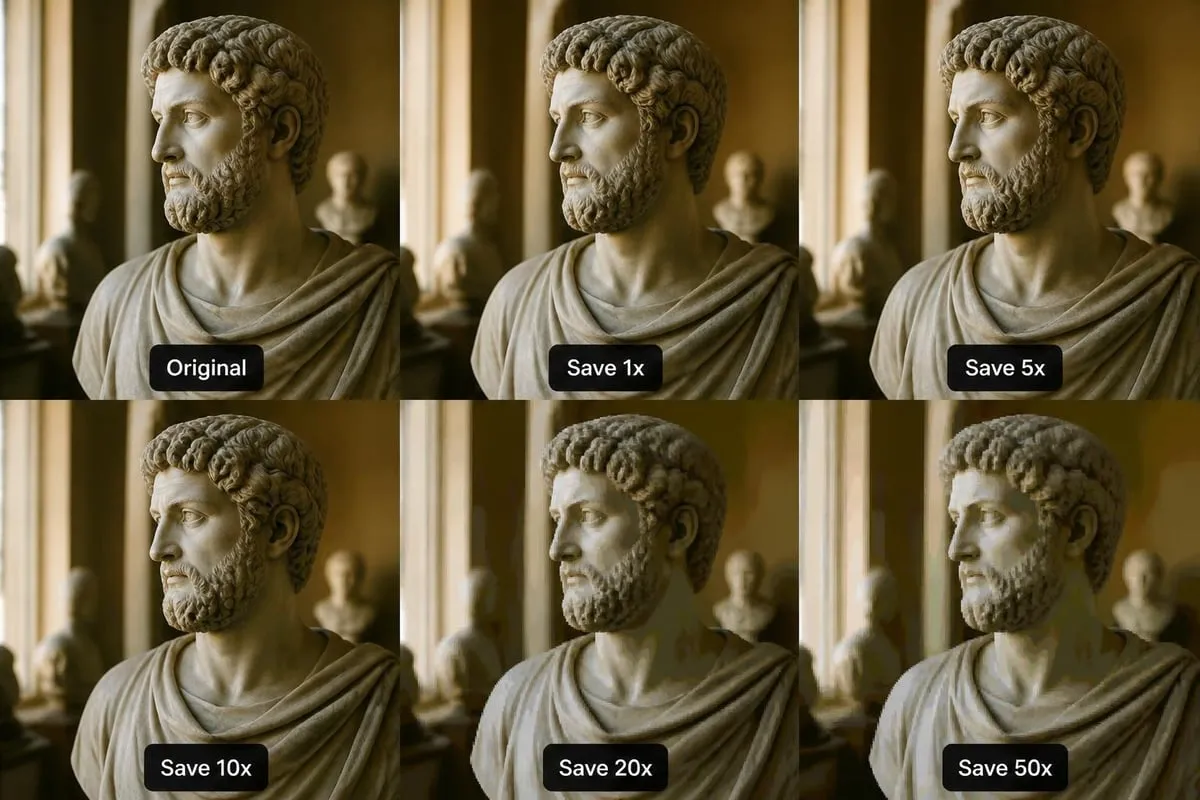
Every time you save a JPG file, the compression algorithm re-processes the image data. This repeated compression creates cumulative quality loss, introducing artifacts that become increasingly visible with each save cycle. Understanding this principle is fundamental to maintaining image integrity throughout your editing workflow.
Key compression considerations include:
- Quality degradation occurs with each save operation
- Compression artifacts appear as blocky patterns in areas of solid color
- Fine details and text become progressively less sharp
- Color banding may develop in gradients and smooth transitions
The compression level you choose directly impacts both file size and visual quality. Higher quality settings preserve more detail but create larger files, while lower settings sacrifice clarity for smaller file sizes. Imgfast's comprehensive guide provides valuable insights into optimizing quality settings for different applications.
Optimal Quality Settings for Different Applications
Professional jpg editing requires selecting appropriate quality settings based on final usage. Web images typically tolerate compression levels between 60-80%, while print materials demand higher quality settings of 90-95% to prevent visible degradation.
| Application | Recommended Quality | File Size Priority | Detail Requirements |
|---|---|---|---|
| Web galleries | 70-80% | High | Medium |
| E-commerce products | 85-90% | Medium | High |
| Print materials | 95-100% | Low | Very High |
| Social media | 60-75% | Very High | Low to Medium |
| Email attachments | 65-75% | High | Medium |
Professional JPG Editing Workflows
Establishing a proper workflow prevents quality loss and ensures consistent results across multiple projects. The fundamental principle involves working with the highest quality source files and saving JPG versions only as the final step.
Working with Source Files
Always begin jpg editing with the original, highest-quality version available. If you photographed the images in RAW format, perform all major adjustments in your RAW processor before converting to JPG. This approach preserves maximum image data throughout the editing process.
For images already in JPG format, create a working copy in a lossless format like TIFF or PSD. This technique allows you to make multiple adjustments without repeatedly compressing the same JPG file. According to Wikimedia Commons' guidance on JPEG editing, avoiding repeated saves is crucial for maintaining image quality.
Essential workflow steps:
- Import original or highest-quality source file
- Convert to lossless working format if starting with JPG
- Perform all retouching and adjustments in working format
- Apply color correction and enhancement
- Resize to final dimensions if needed
- Export to JPG only once with appropriate quality settings
- Archive working files for future revisions
Color Correction and Enhancement Techniques
Color accuracy becomes particularly important in jpg editing for product photography and e-commerce applications. JPG files use RGB color space, and even minor adjustments can introduce color shifts when files are repeatedly saved.
Professional color correction should address:
- White balance adjustment for accurate color representation
- Exposure and contrast optimization
- Shadow and highlight recovery
- Saturation enhancement without oversaturation
- Selective color adjustments for specific elements
Businesses specializing in ecommerce photo editing understand that consistent color accuracy directly impacts customer purchase decisions, making proper JPG color management essential for online retail success.

Resizing and Dimension Management
Resizing represents one of the most common jpg editing tasks, yet it's frequently performed incorrectly. Proper resizing techniques preserve sharpness and prevent distortion while achieving the required dimensions.
Resolution and Aspect Ratio Considerations
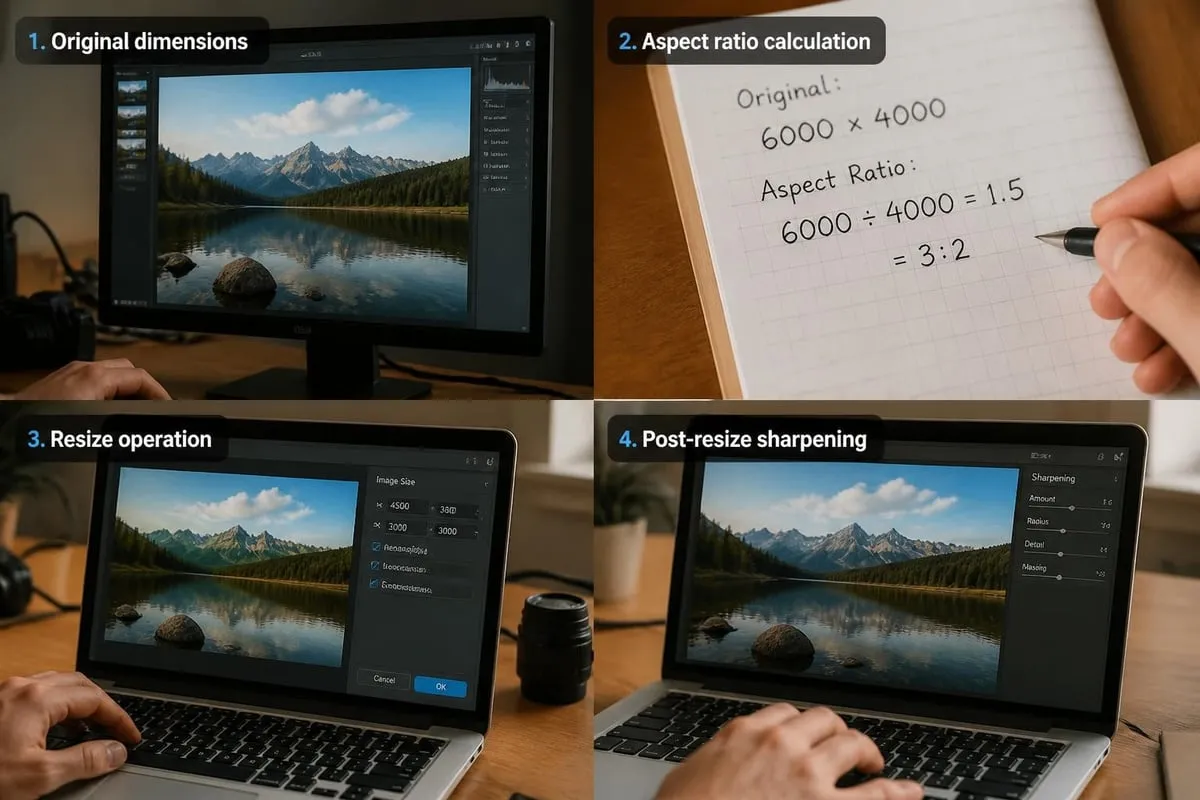
Digital images consist of pixels arranged in a grid. When you resize a JPG, software must either add pixels (upscaling) or remove pixels (downscaling). Downscaling typically produces better results because the software selectively discards information rather than inventing new details.
Maintaining the original aspect ratio prevents distortion. If your source image measures 4000 x 3000 pixels (4:3 ratio) and you need a 1200-pixel-wide version, the height should be 900 pixels to preserve proportions. ResizeBox's best practices guide offers detailed recommendations for different scaling scenarios.
Resolution guidelines by output medium:
- Web display: 72-96 PPI (pixels per inch)
- Standard printing: 300 PPI minimum
- Large format printing: 150-240 PPI acceptable
- Mobile devices: 72-96 PPI with responsive sizing
Sharpening After Resizing
Downscaling inevitably softens images slightly. Applying appropriate sharpening after resizing restores crispness without introducing artifacts. The sharpening amount should increase as image dimensions decrease, but excessive sharpening creates halos and emphasizes compression artifacts.
Advanced JPG Editing Techniques
Professional jpg editing extends beyond basic adjustments to include sophisticated retouching, compositing, and optimization techniques that maximize quality while minimizing file size.
Selective Editing and Masking
Rather than applying adjustments globally, selective editing targets specific image areas. This technique proves particularly valuable when different regions require different treatments, such as brightening a subject while maintaining sky exposure.
Layer masks in professional editing software enable precise control over adjustment application. You can lighten backgrounds, enhance product details, or correct color casts affecting only portions of your image. This selective approach produces more natural results than global adjustments.
Artifact Reduction and Quality Recovery
When working with heavily compressed JPG files, visible artifacts often require remediation. Specialized filters can reduce blockiness and banding, though they cannot fully restore lost information.
Artifact reduction strategies include:
- Applying subtle gaussian blur to smoothed blocked areas
- Using median filters for color banding
- Selective noise reduction in smooth gradients
- Edge-preserving smoothing for overall refinement
- Avoiding aggressive settings that create plastic-looking results
The University of Texas College of Fine Arts guidelines provide troubleshooting approaches for common JPG quality issues encountered in web publishing.
Batch Processing and Automation
For jpg editing workflows involving multiple images, batch processing dramatically improves efficiency. Automating repetitive tasks ensures consistency while reducing manual labor.
Creating Effective Batch Workflows
Batch processing works best for standardized operations applied to multiple similar images. Product photography for e-commerce particularly benefits from batch workflows that apply consistent background removal, color correction, and resizing to entire product catalogs.
Modern editing software offers action recording features that capture your editing steps and replay them on other images. This automation maintains consistent quality across hundreds or thousands of images while completing work in minutes rather than hours.
| Batch Task | Time Saved | Consistency Benefit | Ideal Use Cases |
|---|---|---|---|
| Resizing | 95% | Very High | Web galleries, social media |
| Basic color correction | 80% | High | Product catalogs |
| Watermarking | 98% | Very High | Copyright protection |
| Format conversion | 97% | Very High | Platform-specific requirements |
| Sharpening | 90% | Medium | Post-resize enhancement |
Quality Control in Batch Processing
While automation accelerates production, quality control remains essential. Review a representative sample from each batch to verify that automated adjustments produce acceptable results. Individual images with unusual characteristics may require manual intervention despite batch processing.
File Organization and Naming Conventions
Professional jpg editing extends beyond image manipulation to include proper file management. Organized file structures and consistent naming conventions prevent confusion and streamline collaborative workflows.
Establishing Naming Standards
Descriptive file names improve searchability and reduce errors. Effective naming systems include relevant information such as project identifiers, dates, version numbers, and content descriptions. Avoid special characters and spaces that create compatibility issues across different systems.
Recommended naming elements:
- Project or client identifier
- Date in YYYY-MM-DD format
- Descriptive content reference
- Version number for iterations
- Resolution or size indicator when applicable
- Editing status (edited, final, web, print)
Example: 2026-06-15_ProductName_Hero_1200px_Final.jpg
Version Control and Archive Management
Maintaining previous versions prevents catastrophic errors and enables recovery when clients request revisions. Create a systematic versioning approach that clearly distinguishes working files from deliverables.
Archive original unedited files separately from edited versions. This separation prevents accidental overwriting and provides clean source material for future projects requiring different treatments. According to PCWorld's photo editing basics, maintaining organized archives is as important as the editing techniques themselves.
Platform-Specific Optimization
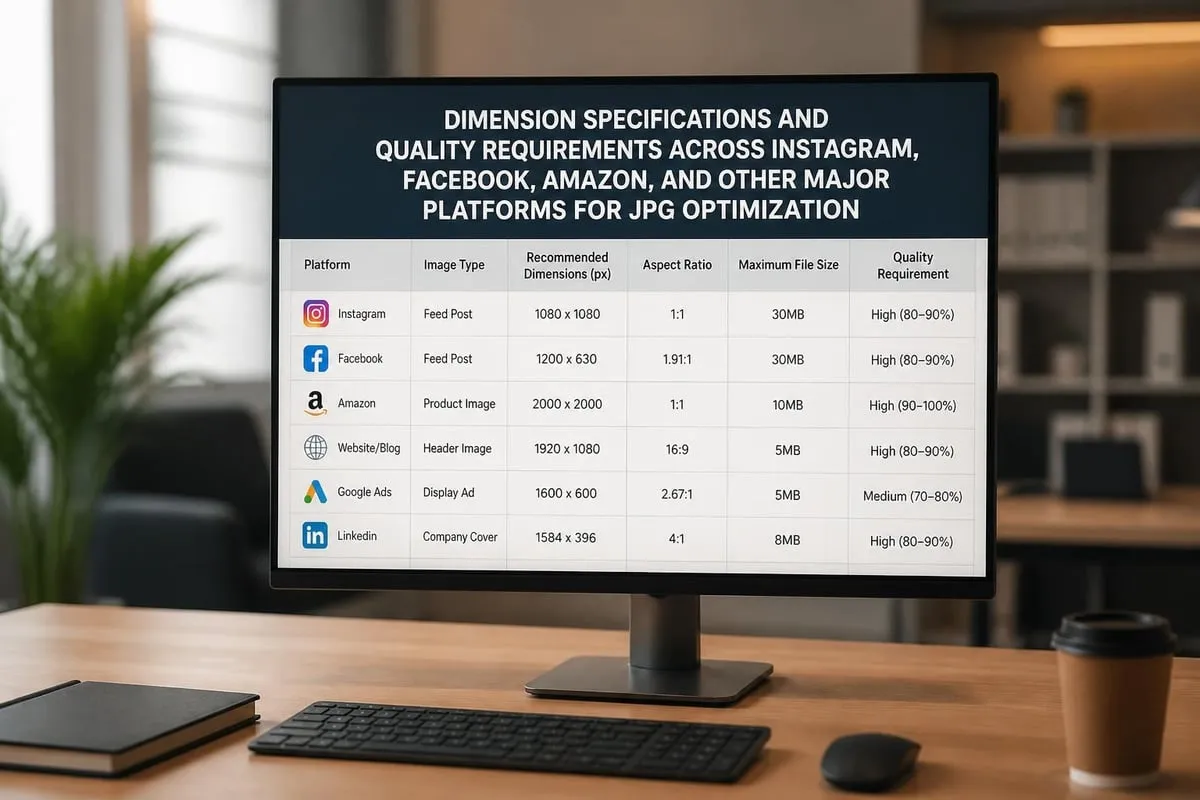
Different platforms impose unique requirements for jpg editing. Social media networks, e-commerce marketplaces, and print services each specify preferred dimensions, file sizes, and quality characteristics.
Social Media Platform Requirements
Instagram, Facebook, Pinterest, and other social platforms automatically compress uploaded images. Pre-optimizing JPG files for these platforms prevents double compression that degrades quality. For detailed strategies on optimizing images across different social media platforms, understanding each network's specifications ensures your images display at their best.
Platform-specific optimization:
- Instagram: 1080 x 1080 pixels (square), 1080 x 1350 (portrait)
- Facebook: 1200 x 630 pixels for shared links
- Pinterest: 1000 x 1500 pixels (2:3 ratio)
- LinkedIn: 1200 x 627 pixels for articles
- Twitter: 1200 x 675 pixels (16:9 ratio)
E-commerce Platform Standards
Online marketplaces like Amazon, eBay, and Shopify establish specific image requirements for product listings. Meeting these standards ensures your images display correctly and meet quality expectations. Professional photography combined with proper jpg editing techniques creates compelling product presentations that drive conversions.
Compliance requirements typically include:
- Minimum dimensions (often 1000-2000 pixels on longest side)
- White or transparent backgrounds for main images
- Maximum file sizes (typically 5-10 MB)
- Accurate color representation
- High clarity without excessive compression
Color Space and Profile Management
Understanding color spaces prevents unexpected color shifts when jpg editing for different output destinations. JPG files typically use the sRGB color space, which provides the widest compatibility across devices and platforms.
sRGB vs. Adobe RGB
While Adobe RGB encompasses a wider color gamut than sRGB, most web browsers, mobile devices, and digital displays support only sRGB. Images saved with Adobe RGB profiles may display with muted colors on sRGB devices unless properly converted.
For web and digital distribution, always convert to sRGB before final JPG export. Print workflows may benefit from Adobe RGB's expanded color range, but verify that your print service supports wide-gamut color profiles before delivering Adobe RGB files. Professional JPG photography practices emphasize the importance of appropriate color space selection for intended output.
Embedding Color Profiles
Embedded color profiles help maintain color consistency across different devices and software. Modern editing applications automatically embed sRGB profiles when saving JPG files, ensuring consistent interpretation by viewing applications.
When working with images requiring precise color matching, such as product photography or brand materials, embedded profiles become essential. They instruct display software how to interpret color values, reducing variation across different screens and devices.
Mobile and Responsive Considerations
Modern jpg editing must account for viewing across devices with dramatically different screen sizes and resolutions. Responsive design principles require serving appropriately sized images to each device type.
Creating Multi-Resolution Sets
Responsive websites deliver different image sizes based on device characteristics. This approach balances quality and performance, sending smaller files to mobile devices while providing higher resolution to desktop screens.
A complete responsive image set might include:
- Thumbnail (300-400 pixels)
- Mobile portrait (600-800 pixels)
- Tablet (1000-1200 pixels)
- Desktop (1600-2000 pixels)
- Retina desktop (2400-3000 pixels)
Each version requires appropriate jpg editing to optimize for its specific display context. Smaller versions may need increased sharpening, while larger versions demand meticulous detail preservation.
File Size vs. Quality Balance
Mobile users often face limited bandwidth and data caps. Optimizing JPG file sizes for mobile delivery improves loading speed and user experience without sacrificing perceived quality. Modern AI platforms can assist in finding optimal quality-to-file-size ratios for different use cases.
Testing images on actual mobile devices reveals how compression affects perceived quality on smaller screens. Often, you can use more aggressive compression for mobile versions because smaller display sizes mask minor quality reductions.
Common JPG Editing Mistakes to Avoid
Even experienced professionals occasionally make errors that compromise JPG quality or create workflow inefficiencies. Recognizing these common mistakes helps you avoid them in your own work.
Repeatedly Saving the Same JPG File
This represents the single most damaging mistake in jpg editing. Each save cycle applies additional compression, progressively degrading quality. Always work in a lossless format and save to JPG only once as the final delivery step.
Over-Sharpening and Over-Processing
Excessive sharpening creates halos, emphasizes compression artifacts, and produces unnatural-looking results. Similarly, extreme contrast, saturation, or clarity adjustments may look impressive initially but often appear artificial upon closer inspection.
Additional mistakes to avoid:
- Ignoring aspect ratio when resizing
- Using too low quality settings for final delivery
- Failing to convert color spaces appropriately
- Neglecting to soft-proof before delivery
- Skipping quality control on batch-processed images
- Forgetting to archive original source files
Inconsistent Processing Across Image Sets
When editing multiple related images, such as product catalogs or event photography, maintaining consistent processing creates professional cohesion. Variations in color balance, contrast, or exposure across a set appear amateurish and undermine brand consistency.
Creating and applying preset adjustment recipes ensures uniformity across related images while still allowing individual optimization when necessary.
Mastering jpg editing techniques enables you to deliver professional-quality images across all platforms and applications while maintaining optimal file sizes and visual clarity. Whether you're processing hundreds of product images or perfecting a single hero photograph, applying proper workflows prevents quality degradation and ensures consistent results. When your jpg editing needs exceed available in-house resources or require specialized expertise in retouching, color correction, or batch processing, Photo Editing Company provides professional services tailored to photographers, e-commerce businesses, and marketing agencies worldwide.
Related reading: