Clipping is the step that makes or breaks a jewelry photo. A clean cut-out lets a ring sit on a pure white background, match the rest of your catalog and look sharp when a shopper zooms in. A rough one leaves grey halos around the metal, fills the inside of a hoop with background, or slices through a delicate chain, and those mistakes are hard to miss on a phone screen.
This guide explains how editing and clipping your jewelry photos actually works. You will learn what a clipping path is, why jewelry is harder to cut out than most products, the step-by-step workflow professional editors use in Photoshop, how to handle chains, stones and pearls, and the most common mistakes to avoid. It is written for sellers and photographers who want to do the work themselves, and for anyone who wants to understand what they are paying for when they outsource it.
What Is a Clipping Path?
A clipping path is a closed outline drawn around a product so it can be separated from its background. It is usually drawn by hand with the Pen tool in Adobe Photoshop, which creates a vector path made of anchor points and smooth curves that follow the edge of the object.
Once the path is drawn, it can be turned into a selection or a mask. Everything inside the path is kept, and everything outside it is removed or replaced. Because the path is vector-based, its edges are smooth and precise, which is exactly what reflective metal and sharp stone outlines need.
A clipping path is different from an automatic background remover. Automatic tools guess where the product ends, while a clipping path is drawn deliberately along the real edge. For simple, solid objects the two can look similar, but for fine jewelry the hand-drawn path is usually far more accurate.
Why Jewelry Is Harder to Clip Than Other Products
Most products have solid, clearly defined edges. Jewelry often does not.
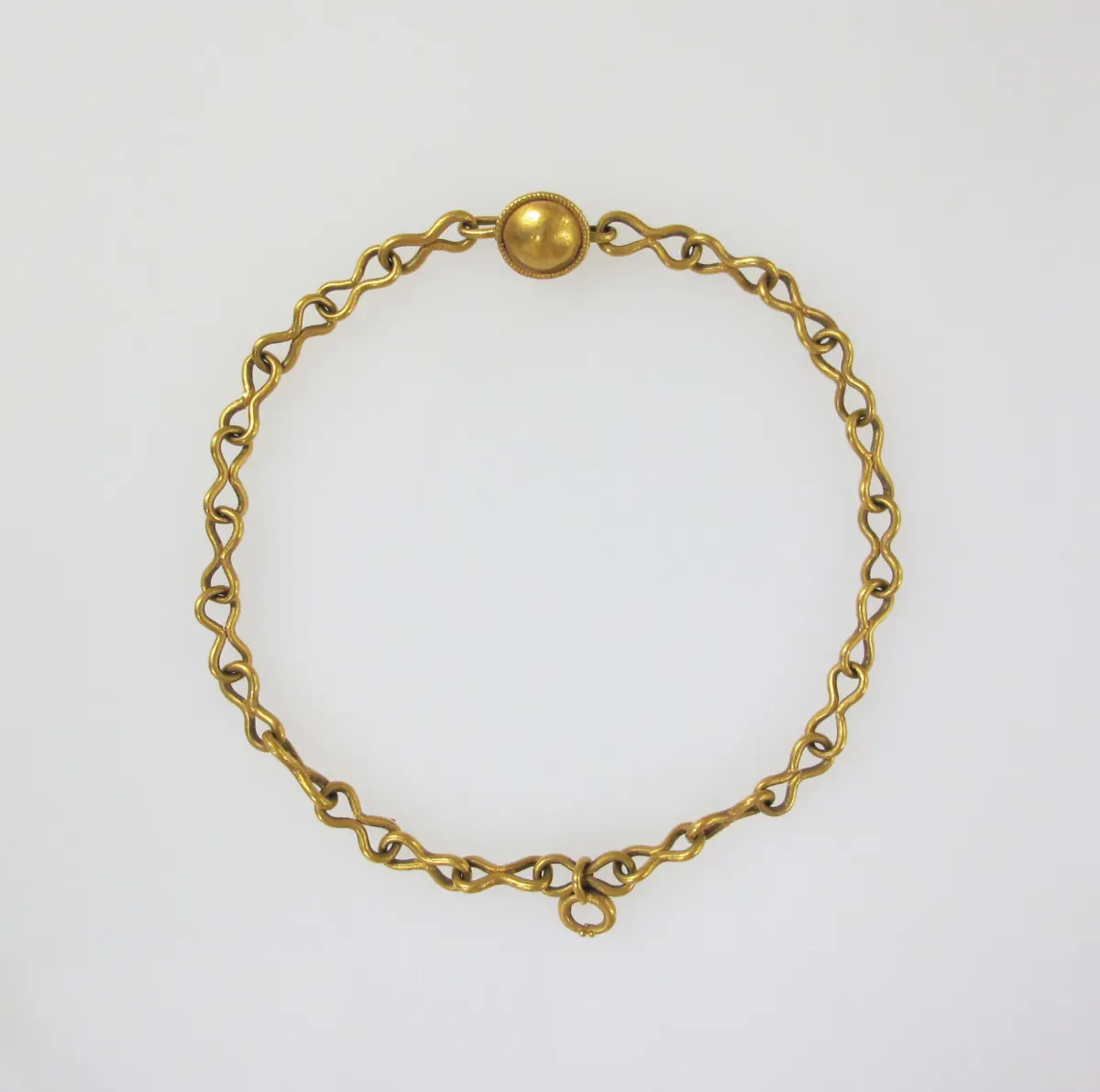
Thin chains and open links
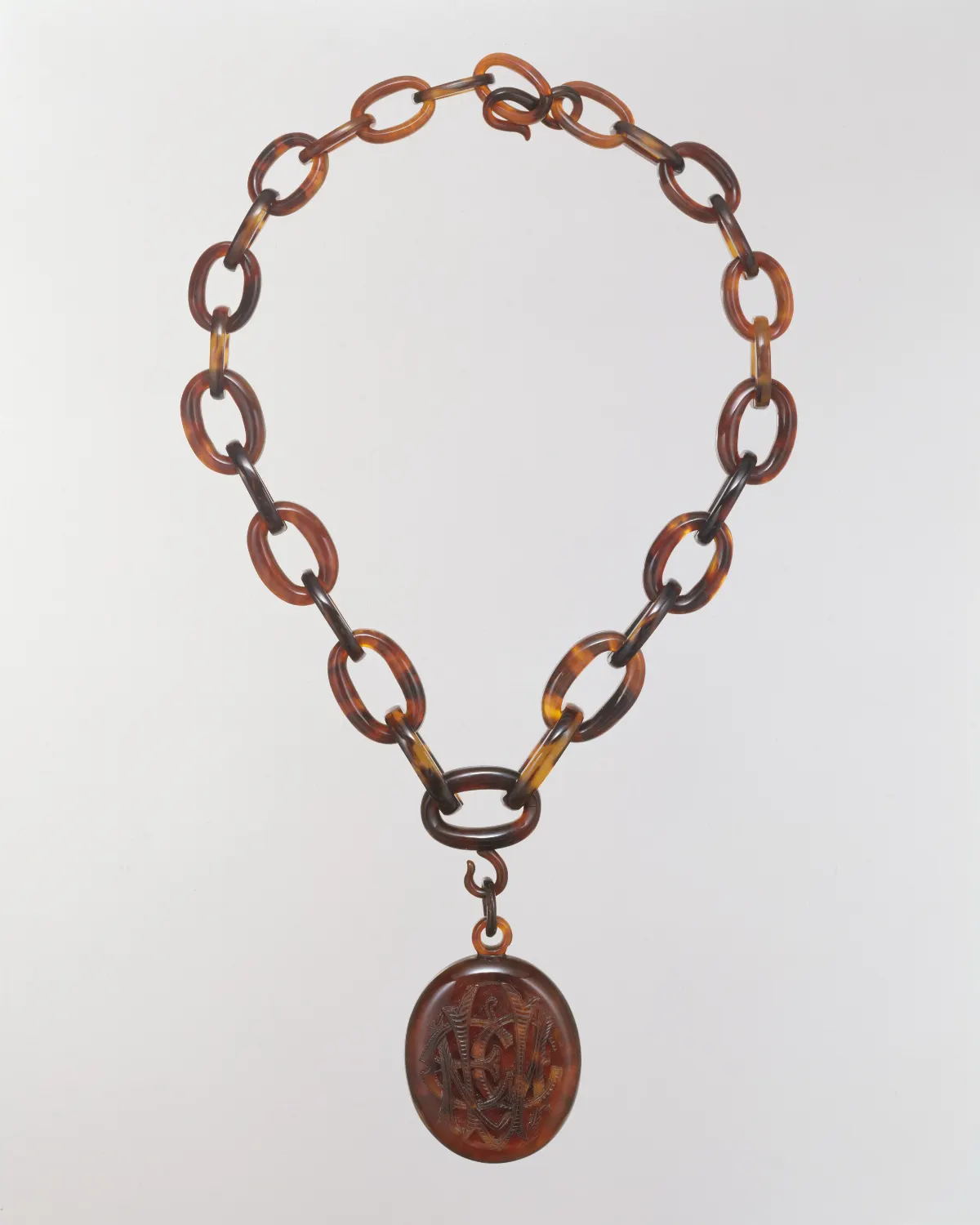
A chain is made of many small links with gaps between them. Each gap should show the new background, not a patch of the old one. Clipping a long chain properly can take far longer than clipping the pendant hanging from it.
Hoops, settings and negative space
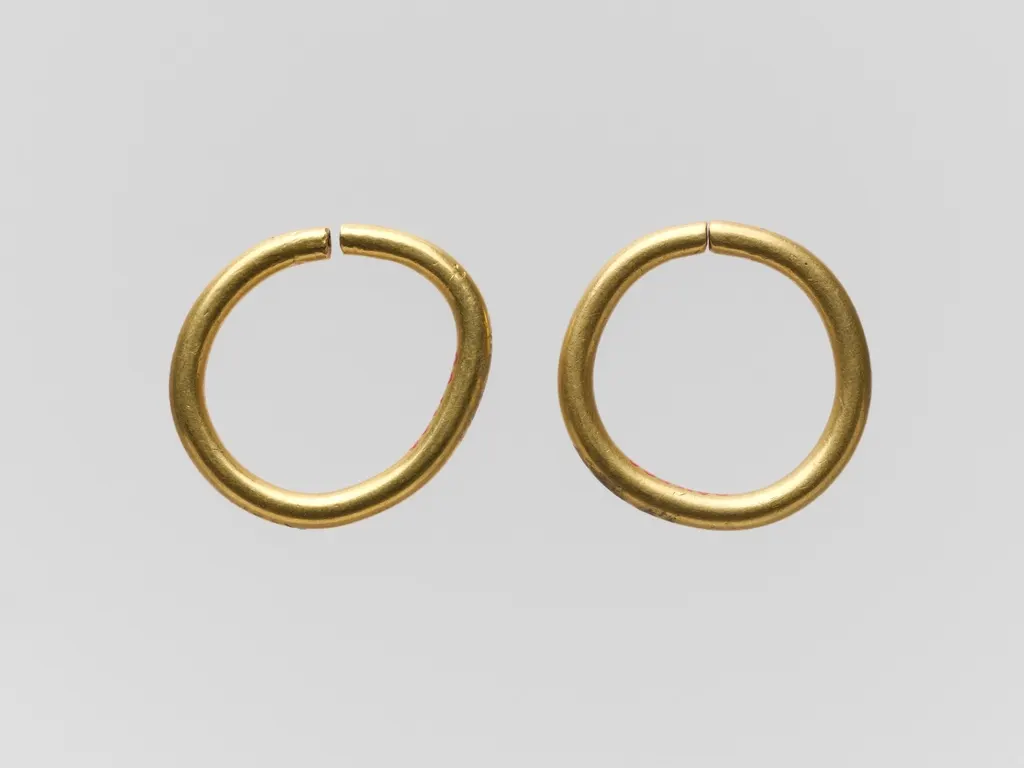
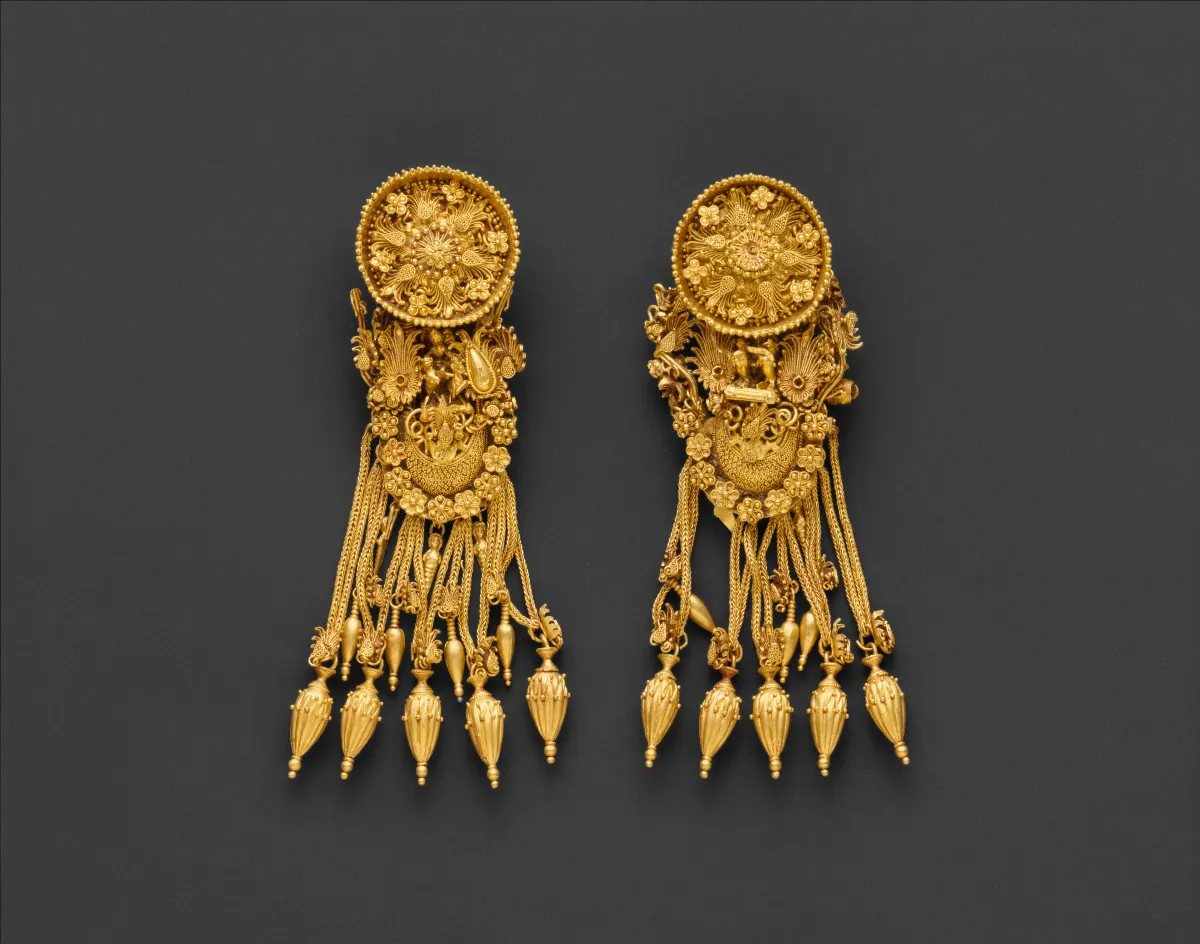
Hoop earrings, open rings, prong settings and filigree all contain empty spaces inside the piece. These areas need their own paths so the background inside them is removed too. Missing them is one of the most common signs of a rushed cut-out.
Reflective and transparent edges
Polished metal reflects its surroundings, so the edge of a ring can blend into a white background. Clear stones and crystals take on the background color, so it can be hard to see exactly where they end. Editors often zoom in close and adjust the image temporarily to find the true edge.
Pearls and soft outlines
Pearls have smooth, round, softly lit edges, and strands are often knotted on fine thread. They need careful curves and attention to the thread between each pearl so the spacing looks natural.
Clipping Path vs Masking vs Automatic Removal
There are three main ways to separate jewelry from its background, and each suits a different situation:
- Clipping path: a hand-drawn vector outline. Best for solid metal, rings, pendants, stones with defined edges and anything that needs crisp, smooth edges.
- Layer masking: a pixel-based mask that can be painted and refined. Best for soft edges, very fine detail, transparent areas and combining with a clipping path for difficult parts.
- Automatic removal: AI or one-click background tools. Fast and useful for simple pieces or quick drafts, but less reliable on chains, open settings and clear stones.
In professional work these methods are often combined. An editor might clip the solid parts of a necklace with the Pen tool, then use a mask to refine the thin chain and the edges of a crystal pendant.
How to Clip a Jewelry Photo in Photoshop: Step by Step
This is the general workflow most editors follow. Exact menu names can vary slightly between Photoshop versions, but the approach stays the same.
Step 1: Start with the best original you have
Shoot on a plain background that contrasts with the piece, in sharp focus, with even lighting. A clean original makes the edges easier to see and reduces the amount of cleanup later. Always work on a copy and keep the original file untouched. For stones in particular, our guide on how to photograph gems and jewelry covers lighting and color.
Step 2: Zoom in and plan the path
Zoom to around 200 to 300 percent so you can see the real edge of the metal. Decide which areas need separate paths, such as the inside of a hoop or the gaps between chain links.
Step 3: Draw the outer path with the Pen tool
Select the Pen tool, set it to create a path, and place anchor points around the outside of the piece. Click and drag to create curves that follow round edges. Use as few anchor points as possible: fewer, well-placed points give smoother curves than many small ones.
Step 4: Add paths for inner spaces
Draw separate paths around the open areas inside the piece and set them to subtract from the main shape, so the background inside them is removed. Repeat for every hoop, opening and visible gap.
Step 5: Save the path
Save the path in the Paths panel so it stays with the file. A saved path can be reused later, edited, or exported with the image for print and layout software.
Step 6: Turn the path into a selection or mask
Convert the path to a selection with a very small feather, often between 0 and 0.5 pixels, so the edge is clean but not jagged. Then add a layer mask to hide the background without deleting any pixels, so you can still adjust the edge later.
Step 7: Refine fine details
Use a mask to refine areas the path cannot handle well, such as very thin chain or soft pearl edges. Check transparent stones carefully and restore any part that was cut away.
Step 8: Place on the new background and check
Put the clipped piece on pure white or your chosen background, then zoom in on every edge. Look for halos, leftover background and missing parts before you move on.
Editing After Clipping: Finishing the Photo
Clipping is only part of the job. Once the piece is separated from its background, editors usually finish the image with these steps:
- Clean up dust, scratches and fingerprints on metal and stones.
- Correct the metal color so gold, silver and rose gold match the real piece.
- Brighten stones carefully so facets look crisp without adding false sparkle.
- Add a soft natural shadow or reflection so the piece does not look like it is floating.
- Crop consistently so every product sits in the same position and size across your catalog.
- Export in the right formats: JPG or WebP for websites, PNG for transparent backgrounds, and a layered PSD or TIFF as a master file.
If you sell on marketplaces, follow each platform's own image guidelines. Google, for example, recommends product images of around 1500 x 1500 pixels or larger for shopping listings.
Common Clipping Mistakes to Avoid
These are the errors that make clipped jewelry look unprofessional:
- Leaving the background inside hoops, rings and open settings.
- Cutting too far inside the edge, which makes the piece look thinner or chipped.
- Cutting too far outside the edge, which leaves a halo of the old background.
- Using too much feather, which makes metal edges look soft and blurry.
- Removing part of a transparent stone along with the background.
- Ignoring the thread or small links between pearls and chain sections.
- Over-editing the metal until it looks plastic or painted.
The quickest way to catch these problems is to place the clipped image on a dark background temporarily. Halos and leftover white areas that were invisible on white become obvious on black.
Should You Clip Jewelry Photos Yourself or Outsource?
Doing it yourself makes sense when you have a small number of images, simple pieces and the time to learn the Pen tool properly. It is a valuable skill, and practice makes it much faster.
Outsourcing usually makes more sense when:
- You have dozens or hundreds of images to process.
- Your pieces include fine chains, filigree, pearls or many small stones.
- You need every image to match one consistent style.
- Editing time is delaying product launches.
A professional jewelry clipping path service handles the cut-out by hand, and can combine it with background removal, shadow creation and full jewelry photo editing in one order. If you are choosing a provider, our guide to picking a jewelry photo retouching service explains what to look for, and you can compare that with free options in our review of the AI jewelry photo editor online free tools.
Frequently Asked Questions
What is a clipping path in jewelry photo editing?
A clipping path is a hand-drawn outline, usually made with the Pen tool in Photoshop, that separates a piece of jewelry from its background. It gives clean, precise edges, so the piece can be placed on white, a transparent background or a new scene without halos or rough outlines.
Is a clipping path better than an automatic background remover?
For simple, solid pieces, automatic tools can be good enough. For chains, open settings, filigree and clear stones, a hand-drawn clipping path is usually more accurate, because it follows the real edge instead of guessing where the product ends.
How do you clip a jewelry chain?
Draw the outer shape of the chain with the Pen tool, then add separate paths for the visible gaps between links and subtract them from the main shape. For very fine chains, editors often combine the path with a layer mask to refine the smallest details.
What feather should I use for a jewelry clipping path?
Use a very small feather, typically between 0 and 0.5 pixels. This keeps metal edges crisp while avoiding a jagged, stepped outline. Larger feather values soften the edge too much and make jewelry look blurred.
What file format keeps a clipping path?
Formats that support Photoshop paths, such as PSD, TIFF and some EPS files, keep the saved path inside the file. Keep one of these as your master copy, then export JPG, WebP or PNG versions for websites and marketplaces.
How long does it take to clip a jewelry photo?
It depends on the piece. A simple ring with solid edges may take only a few minutes, while a long chain necklace with many open links or a cluster of small stones can take much longer. Complexity, not image size, is what drives the time.
Final Thoughts
Editing and clipping your jewelry photos well comes down to patience and precision. Start with a clean original, draw paths along the real edge, remove the background from every inner space, and check your work on a dark background before you publish. Then finish the image with careful cleanup, true metal color and a natural shadow.
If you would rather spend your time on your jewelry than on the Pen tool, our team can help. Explore our jewelry clipping path service or upload a few sample images for a free test edit, and see how clean, consistent cut-outs look on your own products.