

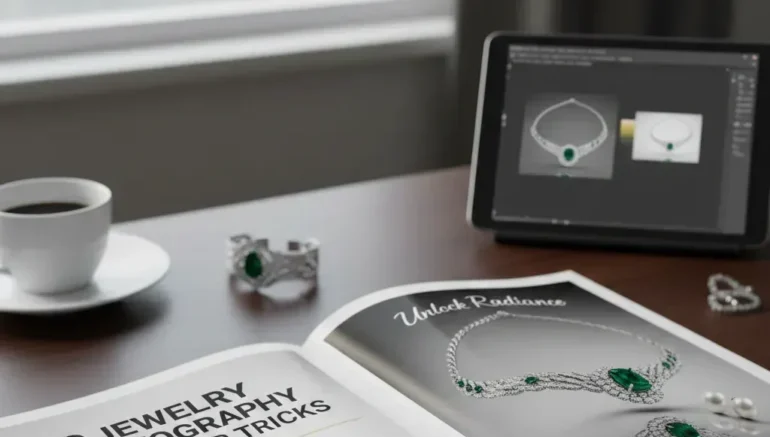
8 Tips for Amazing Photoshop Tricks in Jewelry Photography
Jewelry photography is all about showing off the beauty and details of each piece. A great photo can make your jewelry look more attractive and help it stand out online. While taking good photos is important, editing them in Photoshop can take your images to the next level. Using the right Photoshop Tricks in Jewelry Photography can improve colors, sharpen details, and make your jewelry shine like it does in real life. Even beginners can learn these tricks and quickly improve their photos. With a few simple techniques, your jewelry images can look professional and eye-catching.
In this guide, we’ll share 8 practical Photoshop Tricks in Jewelry Photography that anyone can use. These tips are easy to follow and don’t require complicated skills. From cleaning up backgrounds to adding sparkle to gemstones, each trick will help your jewelry pop. You’ll also learn how to fix small flaws, adjust lighting, and make colors more vibrant. If you’re a hobbyist or selling jewelry online, these Photoshop tricks will save time and improve results. By the end, your jewelry photos will look polished, attractive, and ready to impress viewers.
Here are 8 tips for Amazing Photoshop Tricks in Jewelry Photography:
1.Clean Up the Background Quickly
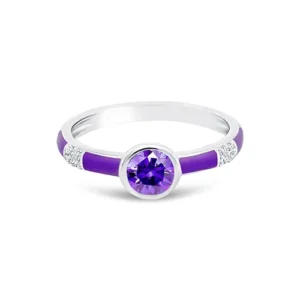 A clean and simple background is one of the most important factors in jewelry photography. Distracting elements like clutter, reflections, or uneven colors can take attention away from your piece. By cleaning up the background, you make your jewelry the focus and give it a professional look. Photoshop offers several easy tools to remove unwanted objects or smooth out the backdrop. Even beginners can quickly learn to isolate jewelry and replace busy backgrounds with plain colors or soft gradients. A tidy background makes your jewelry appear polished and visually appealing, helping it stands out in online listings or portfolios.
Tips to clean up backgrounds quickly:
- Use the Quick Selection Tool or Pen Tool to outline your jewelry precisely.
- Apply a soft blur to the background for a subtle focus effect.
- Replace busy areas with a neutral color that complements the jewelry.
- Use layer masks to make changes non-destructively.
2.Adjust Colors to Make Jewelry Pop
Colors play a huge role in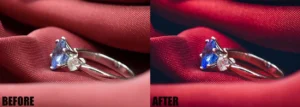 how appealing your jewelry looks in photos. Sometimes, the lighting or camera settings can make gemstones and metals look dull or slightly off. Adjusting colors in Photoshop can help your jewelry appear more vibrant and closer to real life. By correcting tones, increasing luminosity, and boosting subtle hues, each piece can stand out and appear more vibrant. Small adjustments can make a big difference, giving your images a polished and professional feel. The key is to improve the jewelry without making it look unnatural or overly edited.
Tips to adjust colors effectively:
- Use Hue/Saturation adjustments to make gemstones pop.
- Correct white balance to keep metals and gems true to life.
- Increase vibrance to boost color subtly without overdoing it.
- Compare edits with the original photo to maintain realistic tones.
- Apply selective color adjustments to highlight specific areas, like gemstones or engraved details.
3.Sharpen Details for a Professional Look
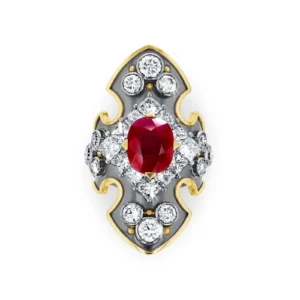 Sharpening your jewelry photos can make a huge difference in how professional they appear. Fine details like gemstone facets, metal edges, and intricate designs can get lost if the image is slightly soft. Using Photoshop’s sharpening tools brings these details to life, making your jewelry look crisp and eye-catching. It’s important to apply sharpening carefully, because too much can create unwanted noise or halos around edges. A well-sharpened photo helps viewers notice the excellence and craftsmanship of each piece, which is especially important for online sales.
Tips for sharpening effectively:
- Use Smart Sharpen or Unsharp Mask to improve details without overdoing it.
- Apply sharpening selectively on areas like gemstones or engraved patterns.
- Avoid sharpening the entire image at once to prevent background noise.
- Zoom in while editing to make sure details remain natural.
4.Remove Dust, Scratches, and Imperfections
Even tiny dust particles,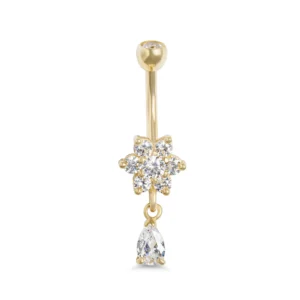 scratches, or imperfections can distract from the beauty of your jewelry in photos. These small flaws may be barely noticeable in person but can stand out in high-resolution images. Photoshop offers easy tools to fix these issues, helping your jewelry look flawless and professional. Taking the time to clean up these details ensures your pieces shine and look well-presented, which is especially important for online listings or portfolios. By carefully editing, you can maintain the natural look of your jewelry while removing unwanted marks.
Tips to remove imperfections effectively:
- Use the Spot Healing Brush for small dust spots or blemishes.
- Apply the Clone Stamp Tool for larger scratches or unwanted reflections.
- Work on a duplicate layer to preserve the original image.
- Zoom in to carefully inspect every detail before finalizing edits.
- Take breaks while editing to spot flaws you may have missed initially.
5.Lighten Shadows and Balance Lighting
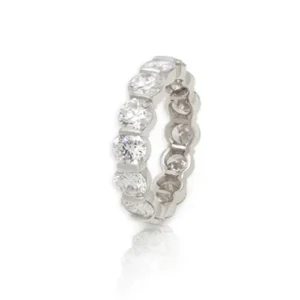 Good lighting is key to making jewelry look its best in photos. Sometimes shadows can hide important details or make the piece look dull. Lightening shadows and balancing lighting in Photoshop helps reveal textures, shapes, and sparkle in your jewelry. Adjusting highlights and shadows ensures the piece looks natural and evenly illuminated without overexposing light areas.Properly balanced lighting makes your images more professional and visually appealing. It also helps maintain a consistent look across multiple jewelry photo.
Tips for lightening shadows and balancing lighting:
- Use Levels or Curves to adjust shadows and highlights precisely.
- Apply the Dodge tool selectively to lighten darker areas.
- Use the Burn tool carefully to add depth where needed.
- Avoid over-lightening, which can make metals or stones look washed out.
- Check your image at 100% zoom to ensure lighting adjustments look natural.
6.Improve Gemstone Sparkle
Gemstones are often the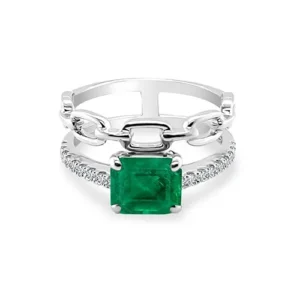 highlight of any jewelry piece, and enhancing their sparkle can make your photos more appealing. Photoshop allows you to add subtle highlights and reflections that make gems appear vibrant and eye-catching. Even small adjustments can make a big difference, bringing out the brilliance and color of each stone. The goal is to make the gemstones shine naturally, without looking artificial or over-edited. Enhancing sparkle draws attention to the jewelry and gives it a more luxurious feel. This technique is especially useful for online stores, portfolios, or social media posts.
Tips to improve gemstone sparkle:
- Use small highlights to simulate natural reflections on facets.
- Adjust clarity and illumination to bring out sharper gemstone details.
- Apply layer masks to control exactly where the sparkle appears.
- Avoid excessive sparkle, which can make gems look fake.
- Compare before and after edits to ensure a natural, realistic look.
7.Smooth Surfaces Without Losing Texture
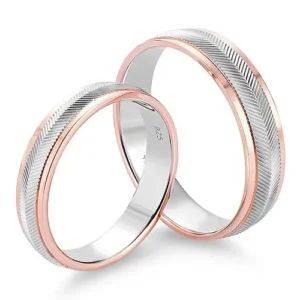 Jewelry often has polished surfaces that need to look clean and refined, but over-editing can make them appear flat and unnatural. Photoshop offers tools to smooth surfaces while preserving the natural texture of metals and gemstones. This helps your jewelry look professional and well-crafted without losing the small details that make each piece unique. Proper smoothing can remove minor scratches, reflections, or dust without compromising the natural shine and design. By keeping textures intact, your jewelry retains its realistic and premium appearance, which is especially important for selling or showcasing online.
Tips to smooth surfaces effectively:
- Use the Surface Blur filter or Frequency Separation technique for controlled smoothing.
- Focus smoothing on reflective areas rather than detailed engravings.
- Always work on a duplicate layer to keep the original intact.
- Compare before and after edits to ensure texture is preserved.
- Apply subtle adjustments gradually to avoid an over-processed look.
8.Create a Consistent Look for Multiple Pieces
When photographing a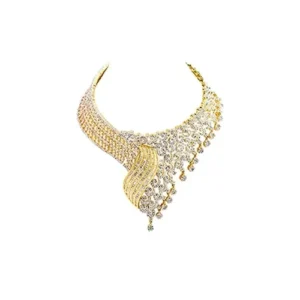 collection of jewelry, consistency is key to making your images look professional. Using similar lighting, colors, and editing styles across all pieces creates a cohesive and polished presentation. Photoshop makes it easy to apply the same adjustments to multiple images, saving time and ensuring uniform standard.A consistent look not only improves the visual appeal of your portfolio but also strengthens your brand identity. Viewers and potential buyers are more likely to trust and appreciate collections that look carefully curated.
Tips to create a consistent look:
- Use adjustment layers to apply the same edits to multiple images.
- Save custom presets for frequently used color and lighting adjustments.
- Keep a reference image to match tones, illumination, and contrast across all pieces.
- Maintain consistent background colors and cropping style.
- Review your collection to ensure all images feel cohesive.
Conclusion
By using these 8 Photoshop Tricks in Jewelry Photography, you can take your jewelry images from ordinary to truly professional and eye-catching. Each tip helps highlight the beauty, colors, and details of your pieces while keeping them natural and realistic. If you’re a hobbyist, a small business owner, or a professional photographer, these techniques can save time and improve your results. Now it’s your turn try applying these tricks to your own jewelry photos and see the difference for yourself.
Read Next: 9 Jewelry Photography Tips for Sparkling Products