

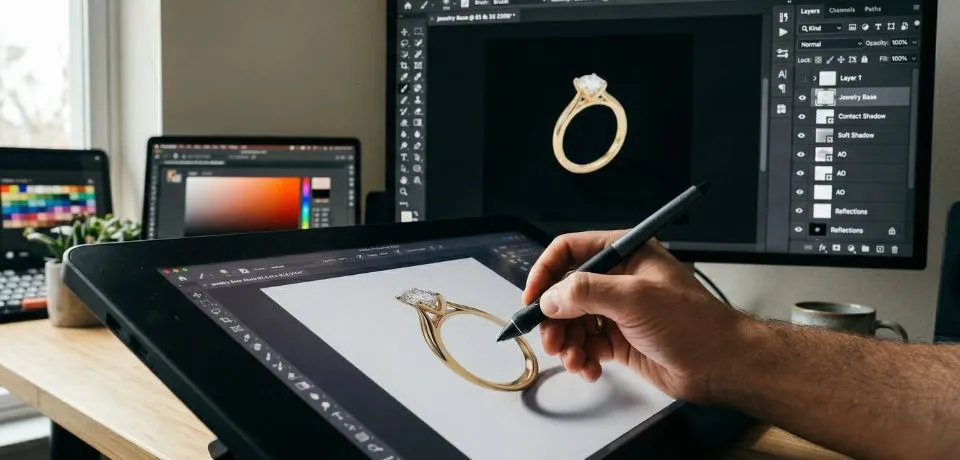
Jewelry Photo Editing Guide
This jewelry photo editing guide provides the steps you need to handle one of the most difficult tasks in post-production. Since gemstones and metals are so reflective, they often show every tiny bit of dust or uneven light from the room. Because of this, you need a solid plan to fix these issues.
Check out these tips for your jewelry photo editing guide
1. The Foundation: Basic Retouching
Before you start the complex work, you must first clean the canvas. Therefore, you should focus on these initial steps:
- Dust and Scratch Removal: Use the Healing Brush or Clone Stamp at 100% zoom. Since jewelry surfaces act like mirrors, even tiny dust looks like a big flaw in high-resolution shots.
- Reflection Management: Furthermore, jewelry often shows the photographer or the lights. Consequently, you should use the Pen Tool to select these spots and paint over them using colors from clean parts of the metal.
- Background Removal: Additionally, professional shots usually need a pure white or transparent background. Thus, use the Pen Tool (Path) for the cleanest edges instead of magic wands.
2. Metal Enhancement: Jewelry Photo Editing Guide for a Liquid Look
To make gold or silver look high-end, you need to balance contrast and smoothness. Specifically, follow these methods:
- Color Correction: First, neutralize unwanted tints. For instance, gold can look green or orange depending on the light. Use Selective Color to fix the metal tone.
- The High-Pass Filter: Next, to make the metal pop, duplicate your layer and apply a High Pass filter. After that, set the blending mode to Overlay or Soft Light.
- Adding Shimmer: Finally, create a new layer and use a soft white brush with low opacity. By doing this, you can manually add highlights on the edges to simulate how light hits a curved surface.
3. Gemstones and Diamonds
The main goal for stones is to show off their fire. To achieve this, consider these points:
- Clarity and Contrast: Use Unsharp Mask on the facets. As a result, the edges will look much crisper.
- Brightness/Contrast: Similarly, increase the contrast of the stone separately from the metal. If the stone looks flat, it is likely because the blacks are not deep enough.
- Color Zoning: For colored stones like rubies, use a Vibrance layer with a mask. Consequently, you can saturate the stone without making the metal look fake.
4. Advanced Techniques: Jewelry Photo Editing Guide for Pro Results
| Technique | Purpose |
| Focus Stacking | Combining multiple shots with different focus points to ensure the entire piece (from front to back) is sharp. |
| Shadow Creation | Adding a Drop Shadow or Reflection Shadow prevents the jewelry from looking like it is “floating” on the white background. |
| Prong Realignment | Using the Liquify Tool to subtly straighten prongs that may look slightly asymmetrical under a macro lens. |
CONCLUSION
Learning how to finish your projects with a clean look takes time and a bit of practice. Following this jewelry photo editing guide helps you find the best ways to make every piece look great for your shop or social media. You should try these steps on your next batch of photos to see how much better they look when you focus on the small details. Working on tiny items is tricky, but the results are always worth the extra effort in the end.
Do you have a favorite trick that makes your gold or silver pieces look much cleaner in a short amount of time? Please share your best ideas or ask a question in the comment section below so we can all help each other get better at this craft. We would love to hear about the tools you use for your daily work.