High-resolution imagery has become the cornerstone of professional photography, ecommerce, and digital marketing in 2026. Whether you're a photographer, product seller, or creative professional, working with a photo editor with high resolution capabilities determines the quality and versatility of your final images. The difference between adequate and exceptional image editing lies in the software's ability to preserve detail, maintain color accuracy, and support professional-grade output sizes. Understanding which tools deliver true high-resolution editing power and how to maximize their capabilities can transform your visual content from ordinary to extraordinary.
Understanding High-Resolution Photo Editing Requirements
High-resolution photo editing requires more than just opening large files. A photo editor with high resolution must handle images at their native quality without degradation, support various color spaces, and provide non-destructive editing workflows that preserve every pixel of detail.
What Defines High Resolution in Photo Editing
Resolution in digital imaging refers to the amount of detail an image holds, typically measured in pixels per inch (PPI) or dots per inch (DPI). Professional work demands images at 300 DPI or higher for print, while web applications may use 72-96 DPI but with larger pixel dimensions.
Key resolution specifications include:
- Print resolution: 300 DPI minimum for professional output
- Large format printing: 150-300 DPI depending on viewing distance
- Web display: 72-96 DPI with pixel dimensions matching display requirements
- Archive storage: Maximum available resolution for future flexibility
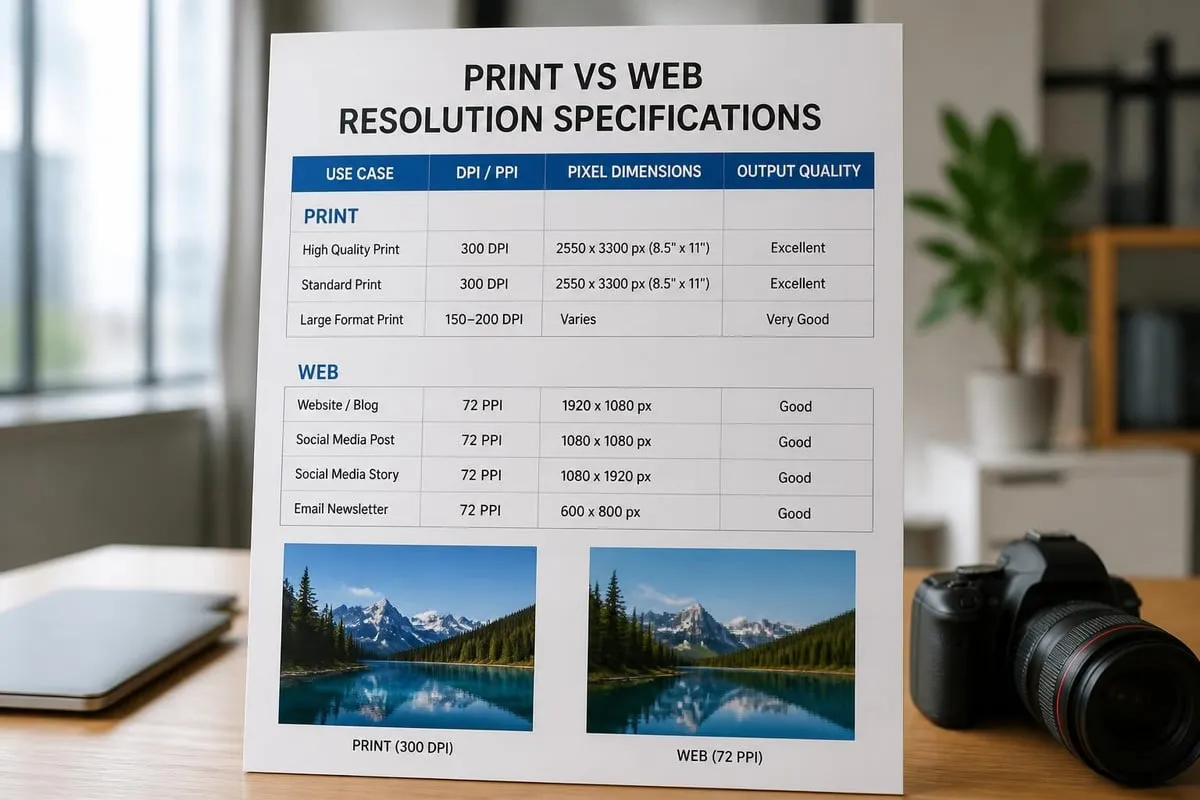
The University of Wollongong provides foundational guidance on image file creation and editing considerations, emphasizing the relationship between resolution, file size, and intended use. When selecting a photo editor with high resolution, verify that the software maintains image quality throughout the editing process without automatic downsizing or compression.
Technical Capabilities That Matter
Modern high-resolution editing demands specific technical capabilities beyond basic image manipulation. Processing power, memory management, and file format support become critical factors when working with images exceeding 50 megapixels or multiple layers.
| Feature | Standard Editor | High-Resolution Editor |
|---|---|---|
| Maximum file size | 100 MB | Unlimited |
| Layer support | 50 layers | 500+ layers |
| Bit depth | 8-bit | 16-bit or 32-bit |
| Color space | sRGB only | Adobe RGB, ProPhoto RGB, CMYK |
| Smart object support | Limited | Full RAW embedding |
Professional workflows require 16-bit or 32-bit color depth to prevent banding and maintain smooth gradients during intensive color correction. A photo editor with high resolution should also support RAW file formats from all major camera manufacturers, providing direct access to unprocessed sensor data.
Essential Features in High-Resolution Photo Editors
The most effective photo editor with high resolution combines powerful processing engines with intuitive interfaces that don't sacrifice capability for simplicity. Understanding which features deliver professional results helps narrow your selection.
Non-Destructive Editing Workflows
Non-destructive editing preserves original image data while allowing unlimited adjustments. This approach uses adjustment layers, smart objects, and virtual copies rather than permanently altering pixel information.
- Import RAW files as smart objects to maintain full editing flexibility
- Apply adjustment layers for color correction, exposure, and toning
- Use layer masks to control precisely where adjustments apply
- Save master files in native format with all layers intact
- Export optimized versions for specific delivery requirements
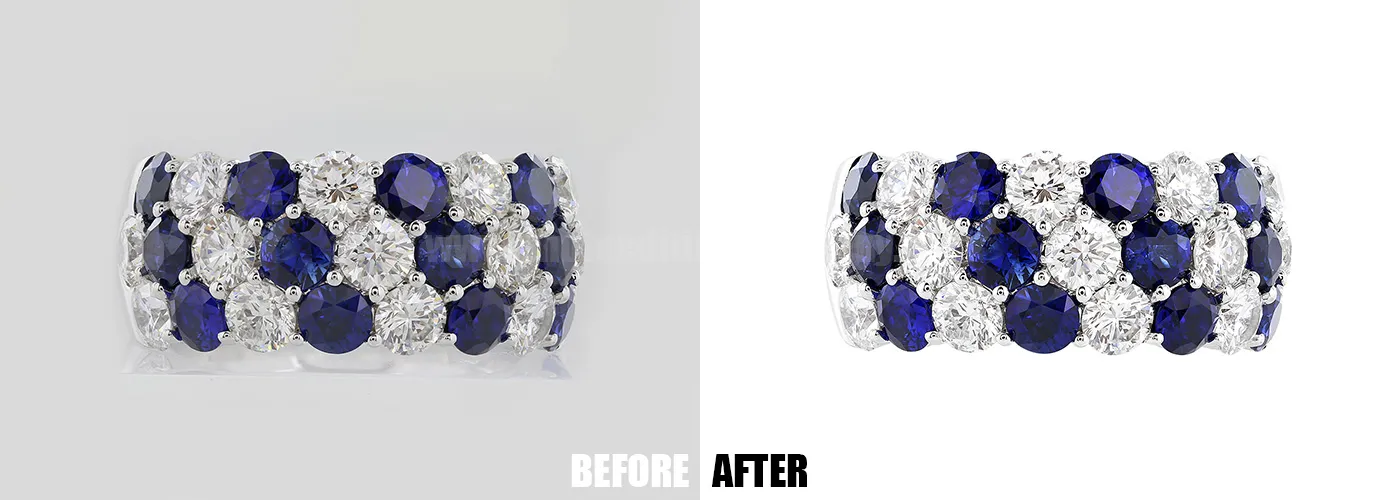
This workflow ensures that you can revisit projects months later and modify any adjustment without quality loss. When working with jewelry photography or product images that require multiple variations, jewelry photo editing services utilize non-destructive techniques to create consistent results across entire product catalogs while maintaining the flexibility to adjust individual pieces. These specialized workflows preserve every detail in gemstones and metals, where resolution and clarity directly impact perceived value.

Advanced Retouching Tools
High-resolution images reveal every flaw, making advanced retouching capabilities essential. A photo editor with high resolution must provide tools that work seamlessly at pixel-level precision while maintaining natural appearance.
Professional retouching features include:
- Frequency separation for texture and tone control
- Content-aware fill and healing brushes
- Dodge and burn layers for dimensional sculpting
- Advanced cloning with perspective matching
- Noise reduction without detail loss
These tools become particularly important when preparing images for large-format output or high-resolution displays where imperfections become magnified. The difference between automated retouching and professional results often lies in the editor's ability to work at multiple zoom levels simultaneously.
Top Photo Editors With High Resolution Capabilities
The landscape of photo editing software in 2026 offers diverse options ranging from industry-standard applications to specialized tools targeting specific workflows. Selecting the right photo editor with high resolution depends on your specific needs, budget, and technical expertise.
Industry-Standard Solutions
Adobe Photoshop remains the benchmark for professional high-resolution editing, offering unmatched capabilities for complex compositing, advanced retouching, and precise color management. Its ability to handle files exceeding several gigabytes while maintaining responsive performance sets the standard.
Affinity Photo provides a compelling alternative with one-time pricing instead of subscriptions, delivering comparable high-resolution editing capabilities at a fraction of the cost. The software handles RAW processing, supports unlimited layers, and maintains full 32-bit workflow capabilities.
Specialized High-Resolution Editors
Capture One excels at RAW processing and tethered shooting workflows, making it the preferred choice for commercial photographers working with medium format digital backs producing 150-megapixel files. Its color grading tools and layer-based local adjustments rival dedicated editing applications.
TechRadar's comprehensive review of photo editing applications highlights how specialized tools often outperform general-purpose editors in specific workflows. When resolution and color accuracy trump versatility, purpose-built solutions deliver superior results.
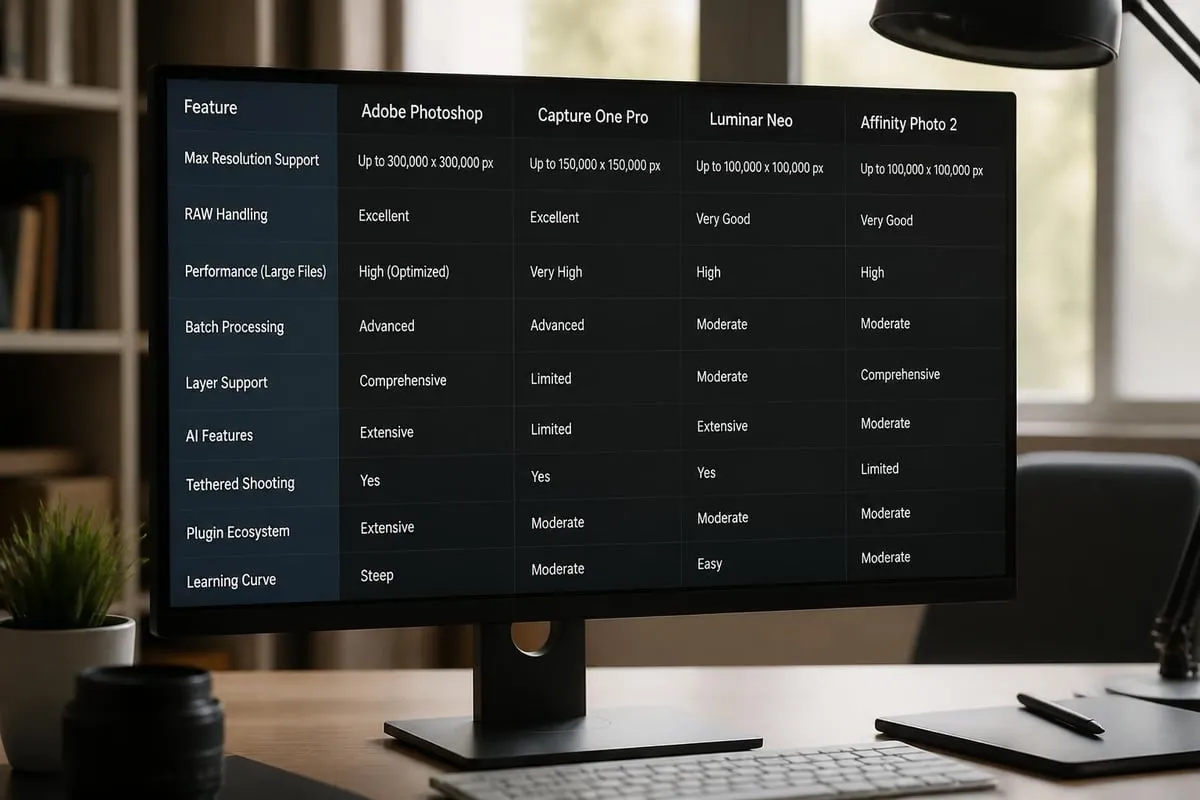
DxO PhotoLab focuses on optical corrections and noise reduction, utilizing detailed camera and lens profiles to extract maximum detail from high-resolution files. Its DeepPRIME AI technology recovers detail from shadows and high-ISO images that other editors cannot match.
Optimizing Your High-Resolution Editing Workflow
Having a powerful photo editor with high resolution only delivers value when you optimize your workflow to leverage its capabilities efficiently. Professional editors develop systematic approaches that maximize quality while minimizing processing time.
System Requirements and Performance
High-resolution editing demands substantial computing resources. Underpowered systems create bottlenecks that transform creative work into frustrating waiting periods.
Recommended hardware specifications:
- Processor: 8-core CPU minimum, 12-16 cores optimal
- RAM: 32 GB minimum, 64-128 GB for large files
- Storage: NVMe SSD for scratch disk with 500 GB+ free space
- Graphics: Dedicated GPU with 8 GB+ VRAM
- Display: Color-calibrated monitor supporting Adobe RGB or wider gamut
These specifications ensure that your photo editor with high resolution operates smoothly even when working with multi-layer compositions exceeding 1 GB file size. Investing in hardware delivers immediate productivity returns through faster previews, quicker filter application, and responsive brush tools.
File Management Strategies
Professional workflows require systematic file organization that supports both creative flexibility and efficient delivery. Establishing naming conventions, folder structures, and backup protocols prevents lost work and enables rapid project retrieval.
| File Type | Purpose | Resolution | Format |
|---|---|---|---|
| Master | Archive with all layers | Maximum available | PSD/TIFF |
| Working | Active editing version | Native | PSD |
| Client preview | Review and approval | Web-optimized | JPEG |
| Final delivery | Print or web use | Specification-based | TIFF/JPEG/PNG |
This tiered approach maintains maximum flexibility while preventing accidental overwriting of master files. When using a photo editor with high resolution, save incremental versions during complex editing sessions to enable rollback if creative direction changes.
Color Management for High-Resolution Images
Color accuracy becomes increasingly critical as resolution increases because viewers can discern subtle variations that would disappear in lower-quality images. A photo editor with high resolution must support comprehensive color management from capture through final output.
Working Color Spaces
Different color spaces define the range of colors available for representation. High-resolution editing typically occurs in wider gamut spaces that preserve maximum color information, even if final delivery uses narrower spaces.
Common working spaces include:
- sRGB: Web standard, smallest gamut, universal compatibility
- Adobe RGB: Expanded gamut for print, common professional standard
- ProPhoto RGB: Maximum gamut, preserves all camera color data
- CMYK: Print-specific, varies by press and paper combination
Creative Bloq's analysis of photo editing software emphasizes the importance of selecting tools that handle color space conversions without introducing artifacts or unexpected shifts. Starting in a wider space and converting down preserves options, while starting narrow permanently discards color information.
Display Calibration Requirements
Even the most capable photo editor with high resolution cannot overcome uncalibrated displays. Color accuracy requires hardware calibration using spectrophotometers that measure actual display output and generate correction profiles.
Professional calibration targets specific standards: D65 white point at 120 cd/m² brightness for general photography, or D50 at 100 cd/m² for print-focused work. Regular recalibration every 2-4 weeks maintains accuracy as displays age and drift.
Advanced Techniques for Maximum Quality
Professional retouchers employ specific techniques that extract maximum quality from high-resolution files while maintaining natural appearance. These methods separate competent editing from exceptional results.
Frequency Separation Retouching
Frequency separation divides image information into texture (high frequency) and color/tone (low frequency) layers, allowing independent control of each element. This technique prevents the plastic appearance that often results from aggressive smoothing.
- Duplicate base layer twice
- Apply Gaussian blur to lower layer (radius 3-8 pixels depending on resolution)
- Apply high-pass filter to upper layer with matching radius
- Set upper layer blend mode to Linear Light
- Retouch texture on high-frequency layer
- Adjust color and tone on low-frequency layer
This approach maintains skin texture while evening tone, preserves fabric weave while adjusting color, and keeps product detail intact while removing reflections or dust.
Luminosity Masking
Luminosity masks create selections based on tonal values, enabling precise adjustments to specific brightness ranges without manual selection work. This technique proves invaluable for high-resolution landscape and product photography.
Professional workflows use action sets or plugins that generate complete luminosity mask sets with single clicks. Professional photo editing software guides for 2026 detail how advanced masking workflows separate exceptional editing from basic adjustments.
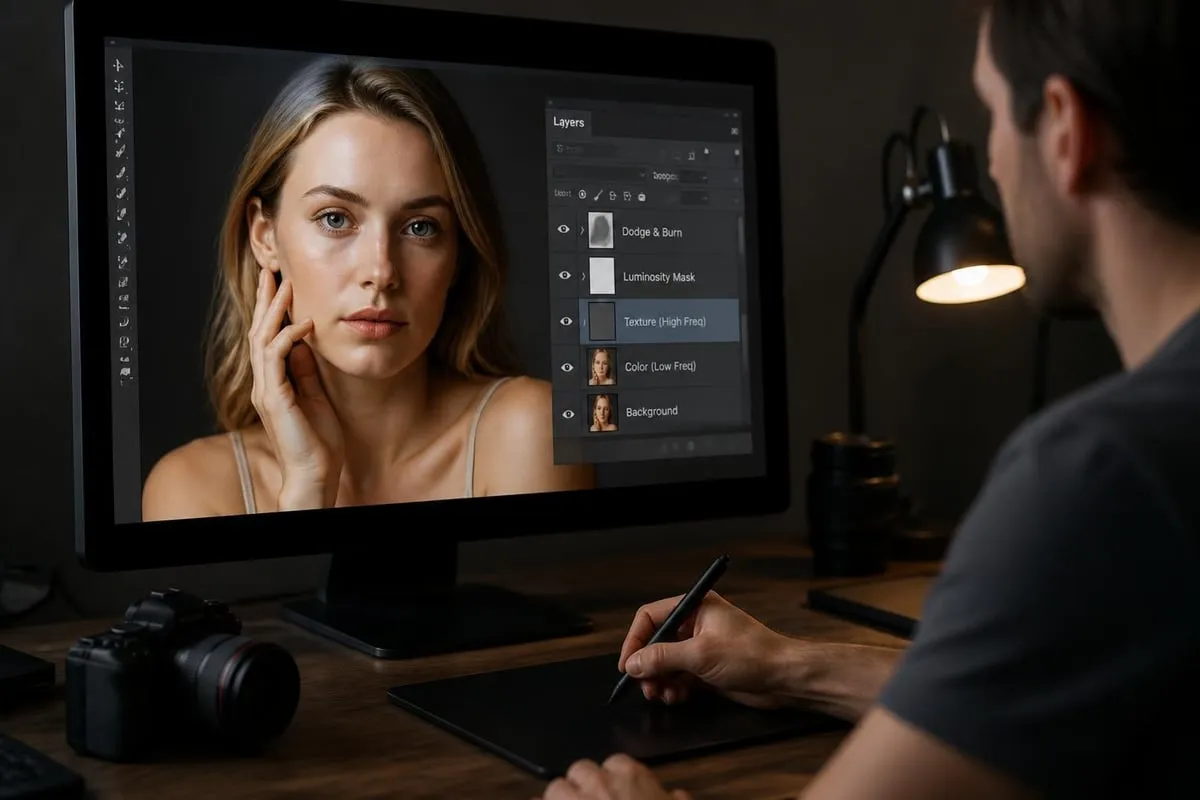
Combining luminosity masks with gradient maps enables color grading that affects specific tonal ranges while leaving others untouched. A photo editor with high resolution must support these complex layer structures without performance degradation.
Export Settings for Various Applications
The final step in high-resolution editing requires careful attention to export settings that match intended use cases. Incorrect compression, color space conversion, or resolution settings can negate hours of careful editing work.
Print Output Specifications
Print requirements vary based on process, substrate, and viewing distance. Commercial offset printing demands different specifications than inkjet fine art prints or large-format signage.
Print export guidelines:
- Resolution: 300 DPI for standard viewing, 150-240 DPI for large format
- Color space: Convert to printer-specific CMYK profile or wide-gamut RGB
- File format: TIFF with LZW compression or maximum-quality JPEG
- Sharpening: Output sharpening specific to print size and process
- Bit depth: 16-bit if printer supports, otherwise 8-bit
Output sharpening applied in a photo editor with high resolution should use settings calibrated for final size and substrate. Matte papers require different sharpening than glossy, and metal prints need different treatment than canvas.
Web and Digital Display
Digital display requirements prioritize file size reduction without visible quality loss. Modern compression algorithms and responsive image techniques enable delivery of appropriately sized files for various screen resolutions.
| Output Use | Resolution | Format | Color Space | Compression |
|---|---|---|---|---|
| Social media | Platform-specific | JPEG | sRGB | 80-85% |
| Portfolio website | 2400px long edge | JPEG | sRGB | 75-80% |
| Ecommerce product | 2000-3000px | JPEG/PNG | sRGB | 80-90% |
| Stock photography | Maximum | JPEG | Adobe RGB | 95-100% |
When exporting from a photo editor with high resolution for web use, embed appropriate metadata including copyright, creator information, and color space tags. Ymage's comprehensive guide to photo editing software explains how proper metadata embedding protects your work and ensures accurate display across platforms.
Quality Control and Image Verification
Professional workflows include verification steps that confirm exported files meet quality standards before delivery. This process catches compression artifacts, color shifts, or resolution problems before clients see them.
Multi-Device Preview Testing
High-resolution images appear differently across devices due to varying color gamuts, screen technologies, and viewing conditions. Professional verification includes checking files on multiple displays and devices.
Testing protocols should include:
- Calibrated primary editing display
- Uncalibrated consumer-grade monitor
- Mobile devices (both iOS and Android)
- Print proofs when applicable
- Client's actual viewing environment when possible
This multi-platform verification ensures that your photo editor with high resolution outputs files that perform well across real-world viewing scenarios, not just on your calibrated workstation.
Pixel-Level Inspection
Final quality control requires zooming to 100% or greater magnification to verify sharpness, check for artifacts, and confirm that all retouching appears seamless at full resolution. Areas that look perfect at screen-fit magnification often reveal problems at actual pixels.
Professional retouchers systematically scan entire images at high magnification, checking backgrounds for missed dust spots, verifying edge quality around cutouts, and confirming smooth gradients without banding. This pixel-level attention separates professional output from amateur results.
Automation and Batch Processing
High-volume workflows demand automation capabilities that maintain quality while processing multiple files efficiently. A photo editor with high resolution should support batch operations for repetitive tasks without sacrificing precision.
Action Recording and Playback
Actions record editing sequences that can replay on multiple images, ensuring consistency across product catalogs or event photography. Professional workflows develop action libraries for common adjustments, saving hours on repetitive work.
Effective action creation requires planning which steps apply universally versus which need manual adjustment. Resize, sharpen, and color space conversion automate well, while content-aware fill and detailed retouching remain manual tasks.
Smart Object Templates
Template files containing smart object placeholders enable rapid production of consistent deliverables. Product photography workflows use templates for different angles or lighting setups, maintaining identical framing and settings across hundreds of SKUs.
When using a photo editor with high resolution, templates should maintain maximum resolution throughout the workflow, only downsizing during final export. This preserves flexibility for future use cases requiring larger output.
Future-Proofing Your High-Resolution Workflow
Technology evolution demands workflows that adapt to increasing resolution requirements and new output formats. Planning for future needs prevents costly reprocessing of image libraries.
Archive File Formats
Master files should use formats that balance maximum quality retention with reasonable file sizes and universal compatibility. Cochrane's technical guide to high-resolution images provides detailed advice on selecting appropriate formats for long-term storage.
Archive format recommendations:
- TIFF: Uncompressed or lossless LZW compression, all layers flattened
- PSD: Native format with all layers intact for future editing
- DNG: Universal RAW format for camera files
- JPEG 2000: Higher quality than standard JPEG with better compression
Maintaining both layered working files and flattened archive versions provides maximum flexibility for future use while ensuring compatibility if software evolves or becomes unavailable.
Emerging Resolution Standards
Display technology advances drive continuous increases in resolution requirements. 8K displays, high-DPI mobile screens, and virtual reality applications demand higher pixel counts than previous generations.
A future-proof photo editor with high resolution workflow captures and archives at maximum available resolution, even when current delivery requires much smaller files. Storage costs decline faster than reshoot expenses increase, making over-capture economically sensible.
Mastering high-resolution photo editing requires the right combination of capable software, optimized workflows, and attention to technical details that separate professional results from amateur attempts. When your projects demand exceptional image quality, expert retouching, and precise color management, Photo Editing Company delivers professional photo editing services with the technical expertise and attention to detail that high-resolution work requires. Their team specializes in advanced retouching, color correction, and preparation of images for both print and digital applications, ensuring your visual content achieves maximum impact across all platforms.
Related reading: